To turn a PDF into JPG pictures on iPhone, the free way is a screenshot of each page. Scanner One saves every page, or the pages you pick, as JPGs in one step, at one of 3 sizes up to 3,000 pixels on the long side. It can also make PNG files, or one long picture of all the pages.
The free ways
For one page in a hurry, take a screenshot. Open the PDF in Files or Preview, zoom until the page fills the screen, and press the side button and the volume up button together. The picture is your whole screen, so the page in it is smaller than the picture, and anything you scrolled past isn’t in it. Screenshots are PNG files, fine for a quick message.
For every page of a PDF, the Shortcuts app can do it with a shortcut built on its Convert Image action, set to JPEG and run from the share sheet. It takes some setting up once, and then it’s free every time.
Save PDF pages as JPG in Scanner One
-
Choose the pages
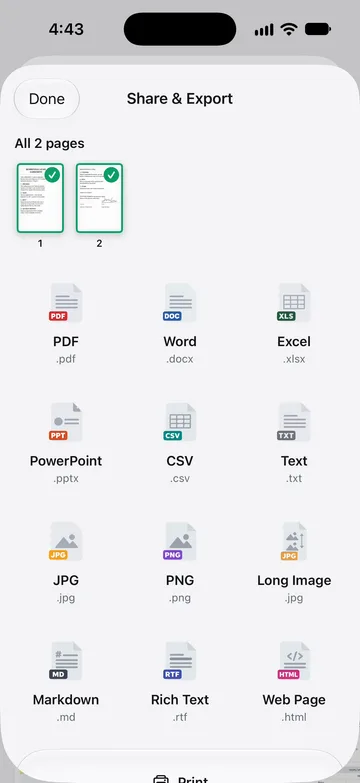
Open the document and tap Share. In a document of several pages, the row at the top has every page ticked: tap a page to leave it out, or touch and hold one for Only This Page. Then tap JPG. A PDF from email or Files comes in first through Files on Home.
-
Pick the size
JPG, PNG and Long Image sit at the top, so you can still switch. Under them, pick Best Quality (“Sharp enough to print”), Balanced (“Clear on any screen”) or Smallest (“Best for email”). Tap Export 2 Images; the number is how many pages go.
-
Share or save the pictures
When “2 images ready” shows, tap Share 2 Images to send them, or to save them to Photos from the share sheet. Save to Files puts them in a folder, and Share as ZIP sends them as one file.
PDF to Image in Home’s Tools does the same after you pick a document, with Choose Pages to set a first and last page instead of the row of ticks.
What sizes you get
Each page is made so its long side fits the level you picked:
| Level | Long side | A Letter page from a PDF | As a print, about | JPG quality |
|---|---|---|---|---|
| Best Quality | 3,000 px | about 2,320 × 3,000 px | 270 dpi | 90% |
| Balanced | 2,000 px | about 1,545 × 2,000 px | 180 dpi | 80% |
| Smallest | 1,200 px | about 927 × 1,200 px | 110 dpi | 65% |
- A PDF’s page is drawn new at that size from the PDF itself, not enlarged from a smaller picture, so its text is as crisp as the size allows. An A4 page at Best Quality is about 2,120 × 3,000.
- A scan is never made bigger than it is. A Letter page that filled Scanner One’s camera screen is about 1,855 × 2,400 pixels (what DPI a phone scan is), so Best Quality leaves it at that size and the other 2 levels scale it down. With Pro, a scan’s page saved as a JPG at Best Quality is the page’s own file, copied without being compressed again.
- PNG makes the same sizes without JPG’s compression.
- Long Image puts the pages one under another in a single JPG, 1,600, 1,200 or 900 pixels wide by level, with a thin white gap between them. A 3-page Letter document at Balanced comes to about 1,200 × 4,700 pixels.
The files are named after the document and the page, like “Lease 1.jpg” and “Lease 2.jpg”; the long picture is “Lease (Long).jpg” and the ZIP “Lease (Images).zip”.
Pictures are free, with no limit: JPG, PNG and Long Image don’t count toward the 3 PDF tools a week. On the free plan, each picture carries a small “Scanned with Scanner One” mark at the bottom right; Pro removes it.
If something goes wrong
- Small print is hard to read in the picture. Use Best Quality, or PNG. A scan can’t gain detail the photo didn’t have: for that, scan the page again closer, in good light.
- The file is too big for an upload form. Use Smallest, or Balanced if the text must stay easy to read. To send the whole document small instead, make the PDF smaller.
- A page came out sideways. Pictures come out the way the pages are. Turn the page first, then export again: how to rotate a PDF.
- The long picture looks tiny in a chat. Some apps shrink very tall pictures to fit. Send separate JPGs instead.

