To rotate a PDF on iPhone so it stays turned, open it in Preview (iOS 26) or Files, show the page thumbnails and choose Rotate Left or Rotate Right. Turning the phone only changes how you see the page, not the file. Scanner One turns pages before you save a scan or any time after, one page or every page at once, and keeps their text in the right place.
The free way: Preview or Files
- Open the PDF in Preview and tap the Show Sidebar button to see the page thumbnails. If you don’t see the button, tap the PDF.
- Tap the More button, then Rotate Left or Rotate Right.
Those are Apple’s steps. On iOS 17 and 18, Files does the same: open the PDF, swipe right from the left edge to show the thumbnails, then touch and hold a page and choose Rotate Left or Rotate Right. Both turn one page at a time and save it into the file, which is fine for one sideways page.
Rotate pages in Scanner One
-
Open Pages
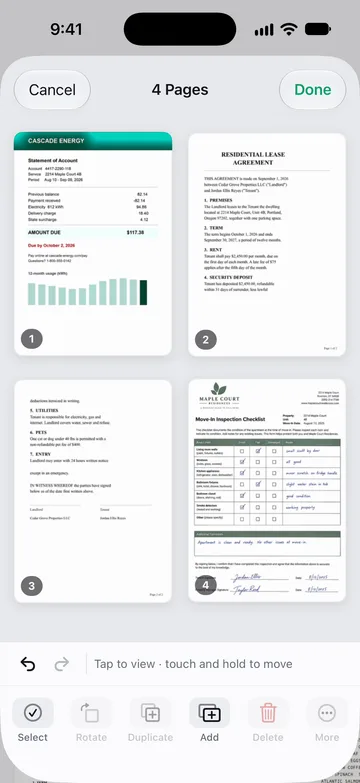
Open the document and tap Pages. A PDF from email or Files comes in first through Files on Home.
-
Turn the page
Touch and hold the page, then tap Rotate Right or Rotate Left: it turns a quarter in place. To turn several, tap Select, tick them, or tap Select All for every page, then tap Rotate, which turns them to the right. More has Rotate Left.
-
Keep it
Tap Done. The message “Saved” has Undo for a few seconds; before that, the undo arrow under the pages takes back one turn at a time.
Before you save a scan
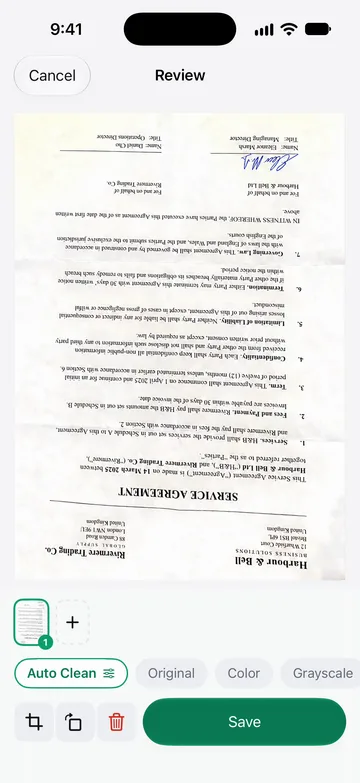
Scanner One saves a page the way the camera saw it; it doesn’t turn pages by itself. If a page in Review is sideways or upside down, tap the rotate button, the second square under the filters: each tap turns it a quarter to the right. Then tap Save.
What a turn changes
- In a PDF with its own text, Scanner One changes the page’s rotation setting and nothing else. The page isn’t redrawn, so its text, links, comments and form fields stay exactly as they were, and every PDF app shows it turned.
- In a scan, the page picture is turned, and so is the photo Scanner One keeps for changing the filter later. The text it read turns with the page, so search, copying and the Text screen still find every word in the right place.
- The other pages aren’t touched, and Share sends the pages the way they now face.
Turning pages is free, with no limit, in Review and in Pages. On the free plan, PDFs you share carry a small “Scanned with Scanner One” mark at the bottom right of each page; Pro removes it.
If something goes wrong
- Rotate is grayed out. No page is ticked. Tap Select and tick a page first, or touch and hold the page instead.
- It turned the wrong way. Tap the undo arrow, or turn it back with the other direction: Rotate Left undoes Rotate Right.
- Every page is sideways. Tap Select, then Select All, then Rotate: one tap turns them all.
- Pages of a scan keep coming out sideways. Hold the phone the way you’d read the page, with its top at the top of the screen, and turn any stray one in Review before you tap Save.

