iPhone has no Split command, but on iOS 26 you can make one part at a time in Preview: duplicate the PDF, then delete the pages you don’t want from the copy. Scanner One’s Split cuts a PDF into as many files as you need in one go, one per page, one every few pages, or by ranges you type, and leaves the original as it was.
The free way: Preview on iOS 26
- Open the PDF in Preview, tap the Actions menu beside the file name, then Duplicate.
- In the copy, show the page thumbnails, touch and hold each page you don’t want, and tap Delete Page.
Those are Apple’s steps for pages. It’s fine for taking one section out of a PDF. Cutting a long one into 5 parts this way means 5 copies and a lot of deleting.
Split a PDF with Scanner One
-
Open Split
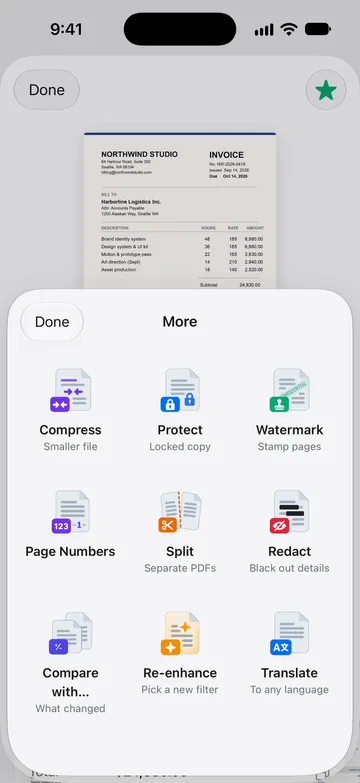
Open the document, tap More, then Split. It needs at least 2 pages. The Split card in Home’s Tools does the same after you pick a document. A PDF from email or Files comes in first through Files on Home.
-
Say where to cut
Under How to split, choose Every Page, Every N Pages and set how many, or By Ranges, which starts with the document cut in half, and type your own, like 1-3, 4-10, 12. Each range becomes a PDF, and “5-” means page 5 to the end. You can also tap a page in the strip below to cut after it. The line above the button lists what you’ll get, such as “Creates 2 PDFs: 1–2 · 3–4”. Tap Split into 2 PDFs.
-
Keep or share the parts
Each part is named after the document and its pages, such as “Maple Court Move-In Packet (Pages 1–2)”. Save 2 PDFs to Library keeps each part as a document of its own; Share 2 PDFs sends them. The original isn’t changed.
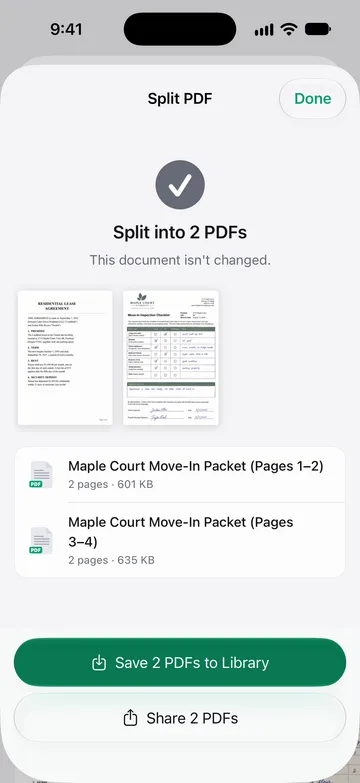
The parts keep everything on their pages: text, links and annotations in a PDF, and the searchable text of a scan. Pages you leave out of every range are skipped, and the result says how many, such as “2 pages are left out.”
Free ways inside Scanner One
Split counts toward the weekly free tools. These 2 don’t:
- Send only some pages: Tap Share on the document, untick the pages you don’t need in the row at the top, then tap PDF. You get one PDF of just those pages, named like “Lease (p2–4)”, and nothing new is saved in Scanner One.
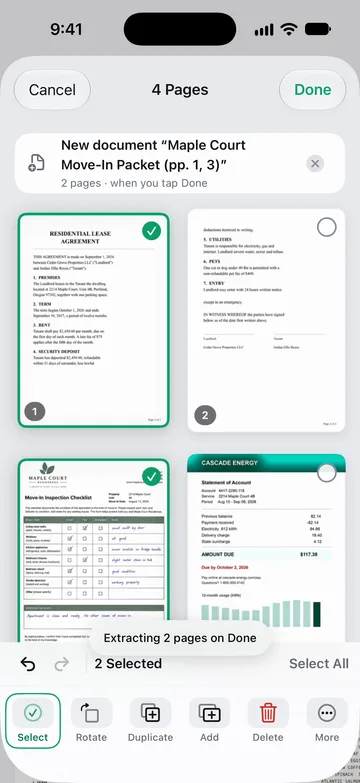
- Make a few pages their own document: Tap Pages, then Select, pick the pages, tap More, then Extract to New Document, and Done. The new document is named like “Maple Court Move-In Packet (pp. 1, 3)”, and the original keeps all its pages.
Split is one of the PDF tools. Free accounts get 3 a week, one count shared with the other PDF tools and Word, Excel, PowerPoint and CSV exports; Pro removes the limit. A split counts once, however many parts it makes. On the free plan, the parts you share carry a small “Scanned with Scanner One” mark at the bottom right of each page; Pro removes it.
If something goes wrong
- Split is grayed out. The document has a single page; the tile says “Needs 2+ pages”.
- It says a range “is outside pages 1–10”. A number in it is past the last page. Check the page count, or end the range with a dash to mean “to the end”.
- It says a range “runs backwards”. Write the lower page first: 4-10, not 10-4.
- You wanted pages 1 and 5 in one file. Each range is one PDF, so 1, 5 makes 2 files: pages that aren’t next to each other can’t share a part. Use Extract to New Document for those.

