You can merge PDFs on an iPhone without another app: in the Files app, select the PDFs and use Create PDF, and iPhone joins them into a new file. Use Scanner One when you need to set the order, number the pages straight through the whole set, or keep scanned pages clean and searchable after they’re joined.
The free way: the Files app
- Put the PDFs in one folder in Files. From Mail, touch and hold the attachment, then Save to Files.
- Tap Select (on some versions it’s in the More menu at the top right) and tap each PDF.
- Tap the More button at the bottom right, then Create PDF. On some versions of iOS it sits under Quick Actions.
The combined PDF appears in the same folder. Files has no step for setting the order, so open the result and check it before you send it; renaming the files 1, 2, 3 first is the usual way to steer it. On iOS 26, Preview can also add one PDF to another: show the page thumbnails, touch and hold one, then Insert from File, and drag pages into order (Apple’s steps).
That covers most merges. It gets awkward when you want page numbers across the set, when some of the PDFs are crooked phone scans, or when you put the same kind of packet together often: receipts for an expense claim, the papers for a rental application.
Merge PDFs in Scanner One
-
Bring the PDFs in
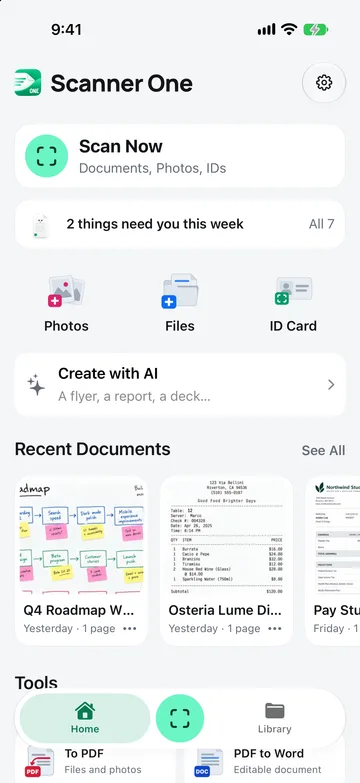
On Home, tap Files and pick the PDFs; you can pick several at once. A PDF with its own text comes in exactly as it is. A scanned PDF of up to 25 pages opens in Review first, like a new scan; save it from there. A password-protected PDF asks for its password, and Scanner One keeps an unlocked copy.
-
Pick them in order
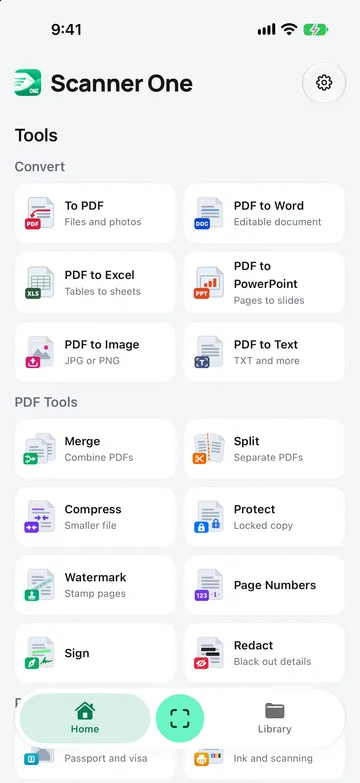
Scroll Home down to Tools and tap Merge. Tap each document in the order you want them (a number appears on each), then Continue. Or, in the Library, tap Select, tick the documents in order, then tap Merge.
-
Check the order and the name
Under Merge order, touch and hold a document to move it, swipe left to remove one, or tap Add a Document. Type a name, or keep “Merged” and today’s date. Turn on Add page numbers to number every page of the result from 1, straight across all the documents. The line above the button says what you’ll get, such as “Result: 1 PDF · 3 pages · about 1 MB”. Tap Merge 2 Documents.
-
Share it or keep it
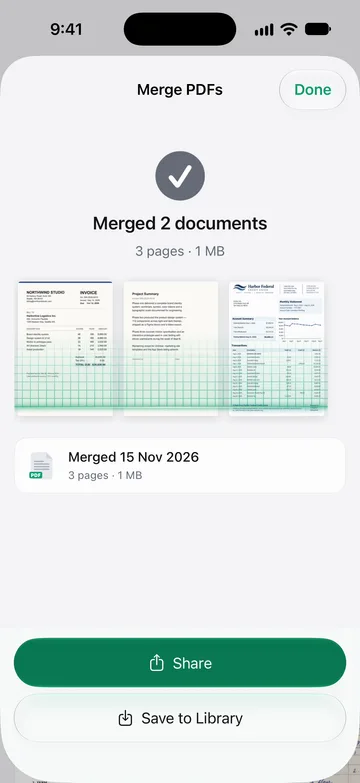
Share sends the merged PDF by Mail, Messages or any app. Save to Library keeps it as a new document. The documents you merged stay as they were.
What a merge keeps
What comes out depends on what goes in, and the options screen says which:
- Only scans: they become one scan, and each page keeps its filter and its searchable text (“Scans merge into one scan, keeping filters and searchable text”).
- Any PDF from elsewhere in the set: the pages are carried over whole, so text, links, annotations and form fields come along, and each page keeps its own size. A Letter page next to an A4 page stays that way.
- With page numbers on: every page is redrawn with its number. Form fields and links in the result can no longer be edited, and the result panel tells you so.
One shortcut for pictures: images and scanned PDFs picked together in Home’s Files land in a single Review, and saving makes them one document, up to 30 pages, without using Merge at all.
Merge is one of the PDF tools. Free accounts get 3 a week, one count shared with the other PDF tools and Word, Excel, PowerPoint and CSV exports; Pro removes the limit. A merge counts once, however many documents go into it. On the free plan, the merged PDF you share carries a small “Scanned with Scanner One” mark at the bottom right of each page; Pro removes it.
If something goes wrong
- Merge is grayed out in the Library. It needs at least 2 documents ticked.
- A PDF didn’t come in. It’s password-protected and was skipped. Get the password from whoever sent it, then pick it in Files again and type it when asked.
- The pages are in the wrong order. Open the merged document, tap Pages, and touch and hold a page to move it. Tap Done to keep the new order.
- The merged file is too big to email. Run Compress on it: how to make a PDF smaller.

