iPhone can’t number a PDF’s pages for you: neither Files nor Preview has a page-number tool, so the free way is typing a number onto each page with Markup. Scanner One’s Page Numbers stamps every page in one step, as 1, 1 / 12 or Page 1 of 12, at the bottom center, the bottom right or the top right.
The free way: Markup, page by page
Open the PDF in Files, tap the Markup button, add a text box from the + menu, type the number and drag it into the corner. Then go to the next page and do it again. For a 3-page letter that’s fine. For 40 pages it’s slow, and the numbers won’t sit in exactly the same spot on every page.
Number the pages in Scanner One
-
Open Page Numbers
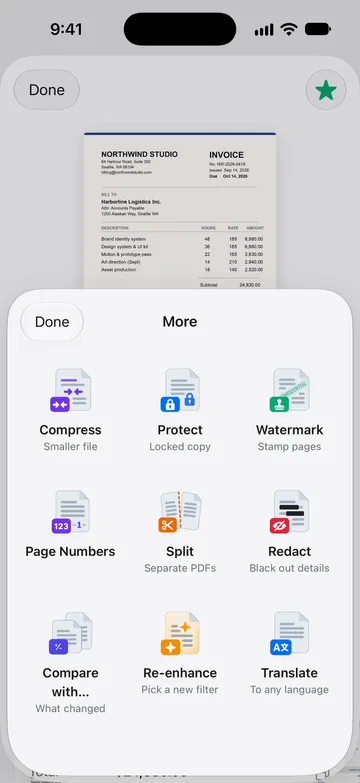
Open the document, tap More, then Page Numbers. A PDF from email or Files comes in first through Files on Home. The Page Numbers card in Home’s Tools works too, but from there the numbers always go on a copy.
-
Pick a style and a place
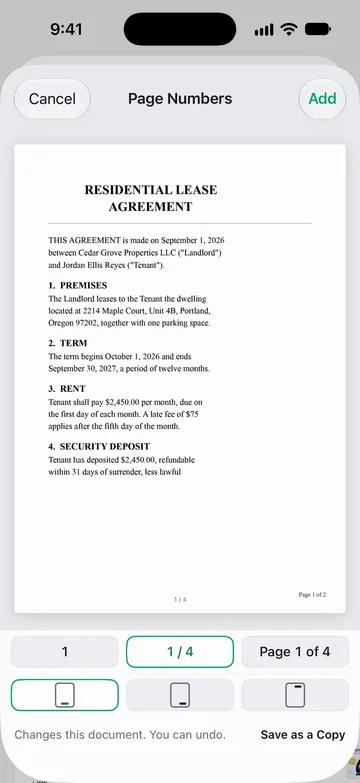
Page 1 fills the screen as it will look. Choose 1, 1 / 4 or Page 1 of 4 (the second number is your document’s page count), then one of the 3 places under them: bottom center, bottom right or top right. Tap Add to number this document; the message that follows has Undo. Save as a Copy leaves this document as it was and saves a numbered copy, named with “(Numbered)”.
How the numbers look
- Dark gray figures with a thin white edge, so they stay readable where a scan runs to the edge of the page.
- Their size follows the page: 1.8% of its shorter side, kept between 8 and 14 points, so 11 points on a US Letter page, set in from the edge by 3% of the shorter side.
- Every page gets a number, starting at 1 on the first page.
- On the document itself, the numbers are drawn into the pages rather than added as text, so search and copying never pick them up and the document’s own words stay exactly as they were. In a PDF, links, comments and the outline are kept.
- A PDF with fillable form fields can’t be numbered in place without breaking the form, so Scanner One makes a copy instead and says so: “It has form fields, so this makes a copy.”
What it doesn’t do
- Start at a number other than 1, skip the cover, or number only some pages.
- Put numbers on the left or at the top center, or change their font or size.
- Remove numbers that are already printed on the pages. In the screen above, the lease keeps its own “Page 1 of 2” at the right while the new 1 / 4 sits in the middle. Pick a place away from the old ones.
To leave a cover unnumbered, split it off (Split, By Ranges, 1, 2-), number the second part, then merge the cover and the numbered part with Add page numbers off. That’s 3 PDF tools: a free account’s whole week.
Numbering several PDFs as one
When you merge documents, turn on Add page numbers in Merge and pick a Style. The numbers run straight through the merged file, 1 / 12 to 12 / 12, instead of starting again with each document. See how to merge PDFs.
Page Numbers is one of the PDF tools. Free accounts get 3 a week, one count shared with the other PDF tools and Word, Excel, PowerPoint and CSV exports; Pro removes the limit. On the free plan, pages you share carry a small “Scanned with Scanner One” mark at the bottom right, and it covers a page number placed there: choose bottom center or top right. Pro removes the mark.
If something goes wrong
- The numbers are hidden in what you sent. On the free plan the bottom-right corner belongs to the “Scanned with Scanner One” mark. Number the pages again at the bottom center or the top right.
- You want the numbers off again. Tap Undo in the message right after Add. Later, a PDF you imported can go back to the file as it came in: tap the ⋯ button at the bottom right, then History, then Revert to Original (this undoes every other change made in Scanner One too). On a scan the numbers become part of the page images, so when in doubt, use Save as a Copy.
- The button saves a copy instead of numbering the document. The PDF has form fields; the copy is numbered and the form stays fillable in the original.

