You can sign a PDF on an iPhone without printing anything. The quickest free way is already on your phone: the Files app and Mail both have a signature tool. Use Scanner One when the contract is on paper, when you want the signed copy kept with the rest of your documents, or when you sign the same kind of paper often.
The free way: Files or Mail
If someone emailed you a PDF and you only need to sign it once, you don’t need another app.
- Save the PDF to Files (in Mail, touch and hold the attachment, then Save to Files), and open it there.
- Tap the Markup button (a pen tip in a circle), then + and Add Signature.
- Draw your signature, tap Done, then drag it onto the line and resize it.
- Tap Done and share the file back.
That covers most one-off signatures. It gets awkward when the contract arrives on paper, when it has several pages to initial, or when you need to find the signed copy again in six months.
Sign with Scanner One
-
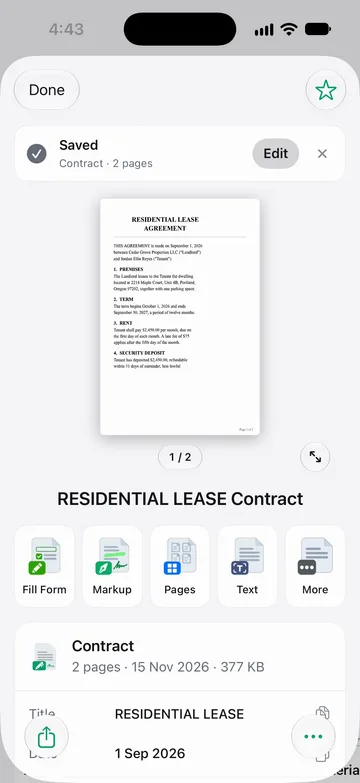
Open the document
A paper contract: tap Scan Now on Home and photograph each page. A PDF from email: save it to Files first, then tap Files on Home and pick it. You can also start from the Sign card on Home and pick the document there.
-
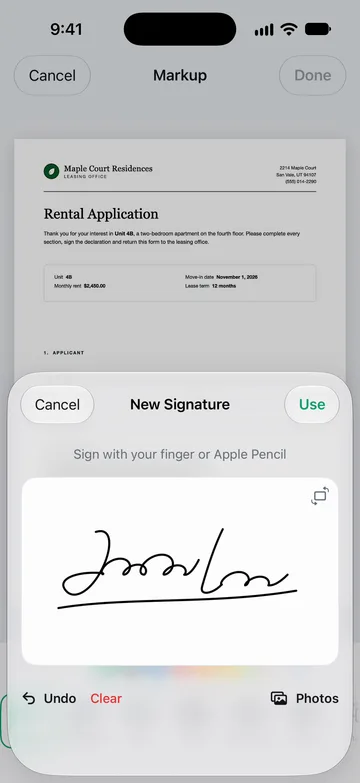
Open Markup and tap Sign
On the document, tap Markup, then Sign in the tool row. The first time, the signature pad opens: sign with your finger or an Apple Pencil, then tap Use. Turn Sideways gives the pad more room.
-
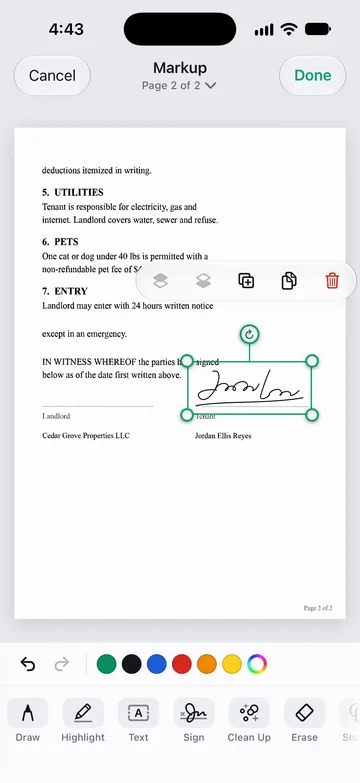
Put it on the line
The signature lands on the page, selected. Drag it onto the signature line and pull a corner to size it. In a document with several pages, Every Page puts the same signature (or your initials) on each page. Tap Done.
-
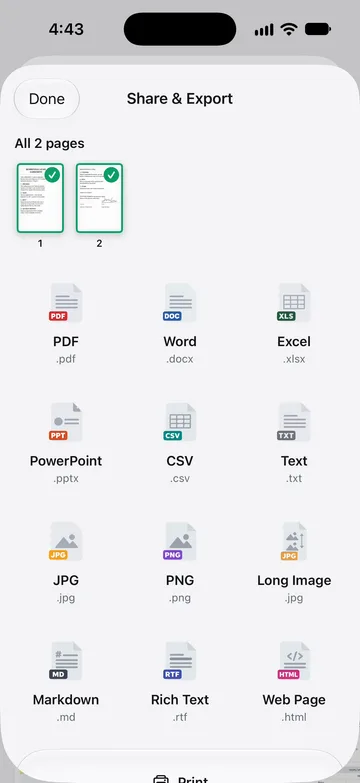
Send the signed PDF
Tap Share, choose PDF, and send it by Mail, Messages or any app. The signature is part of the page, so it looks the same for whoever opens it.
Sign on paper, then bring the signature in
A drawn signature on glass rarely looks like the one you write with a pen. On the signature pad, tap Scan, sign a plain sheet of white paper and photograph it. Scanner One lifts the ink off the paper, so only the signature is placed, with no white box around it. Photos does the same from a picture you already have.
Your saved signatures stay on the phone, and the next time you tap Sign they are listed so you can place one with a tap.
Signing is free for 3 documents a month; Pro removes the limit. Signing the same document again in the same month doesn’t count twice. On the free plan, PDFs you share carry a small “Scanned with Scanner One” mark in the corner of each page; Pro removes it.
Is a signature on a PDF legally binding?
In the US, the UK and the EU, an electronic signature is generally valid for ordinary contracts such as leases, offer letters and consent forms. A few documents still need a wet-ink signature or a notary, such as wills and some property deeds. When a document asks for a “digital signature”, it usually means a certificate-based signature from a service like DocuSign, which a picture of your signature is not. Electronic and digital signatures explains the difference.
If something looks wrong
- The signature is too thick or too thin. Delete it, then sign again more slowly; or sign on paper and scan it, which keeps your pen’s line.
- It landed on the wrong page. Select it and tap the trash can, go to the right page with the page menu at the top of Markup, and place it again.
- The other person can’t see it. Check that you sent the PDF, not a link to a cloud file they can’t open.

