You can fill out a PDF form on an iPhone without printing it. If the PDF has form fields (boxes you tap and type in), the iPhone fills them for free in Files or the Preview app. If the form is a flat page, a scan, or arrived on paper, you place your answers on the page instead. Scanner One does both, and keeps the filled form with the rest of your documents.
The free way: Files or Preview
Apple’s own steps, on iOS 26:
- Open the PDF in Files, or in the Preview app. A form from Mail: touch and hold the attachment, then Save to Files.
- Tap the AutoFill button, then tap a field and type. AutoFill can offer your name and address if you’ve filled in your own card in Contacts.
- Where the form has no field, tap the Add button, then Add Text Form Box, and drag the box into place. Add Signature is in the same menu.
- Share the finished PDF from the Share button.
That covers a PDF with real fields. A paper form has to be scanned first, and a scan has no fields, so each answer becomes a text box you place by hand.
Fill it in with Scanner One
-
Open the form
A PDF: tap Files on Home, pick it, and open it from the Library. A paper form: tap Scan Now and photograph each page.
-
Tap Fill Form and type
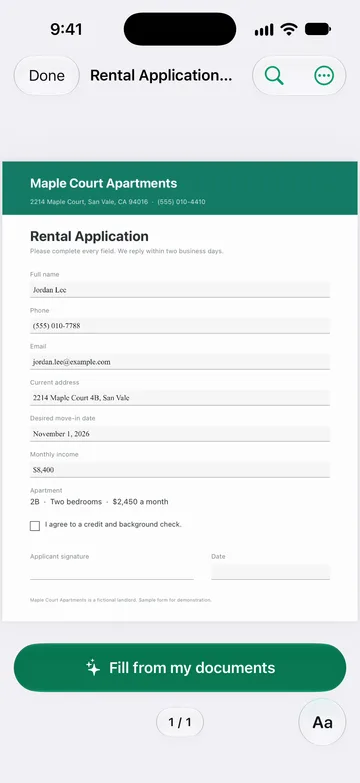
A PDF with fields shows Fill Form first, in front of Markup. Tap it and the form opens with its fields ready: tap a field, type, then tap the next. Tap Done at the top left when you finish, and what you typed is kept in the document.
-
No fields? Type on the page
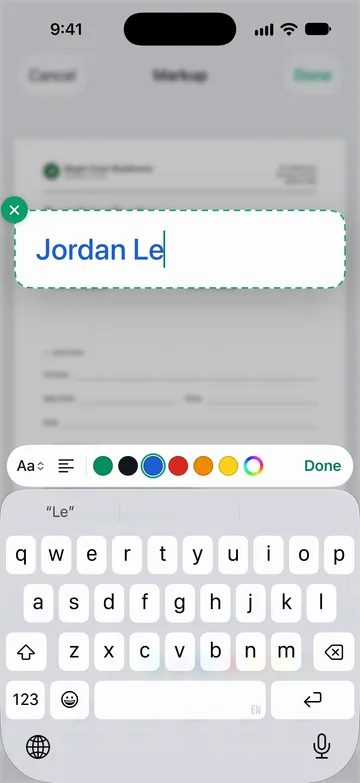
On a scanned form, or a PDF without fields, tap Markup, then Text. Type the answer on the card above the keyboard and tap Done: the words land on the page, selected. Drag them onto the line and pull a corner to make them bigger or smaller.
-
Tick the boxes and date it
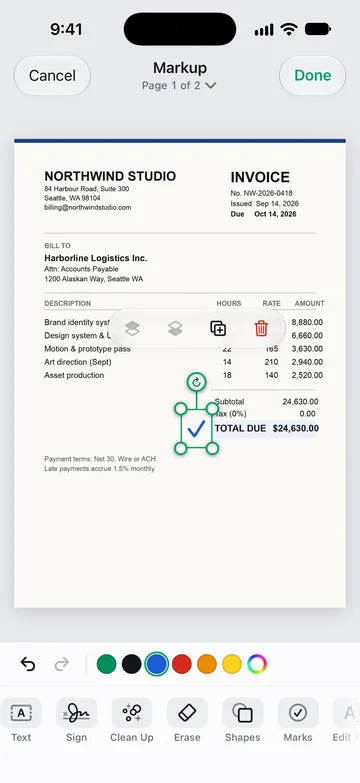
Tap Marks in the tool row, then the checkmark, cross, dot or calendar. Each one lands on the page selected, ready to drag onto its box; the calendar writes today’s date.
-
Sign and send it
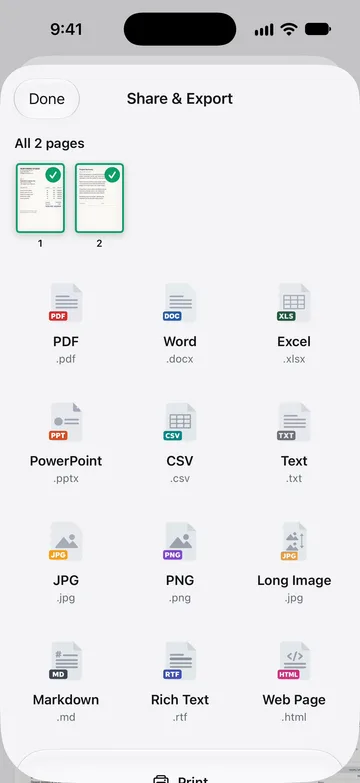
If the form needs a signature, open Markup and tap Sign (all the steps are in how to sign a PDF on iPhone). Tap Done, then Share and PDF.
Fill it from your own papers
With Pro, Fill from my documents answers a form from papers you’ve already scanned, such as your passport, a payslip or your lease. Each answer shows which paper it came from. When 2 papers disagree, or none has the answer, it asks you instead of guessing, and it saves a filled copy beside the blank form. It reads your papers as they’re printed, so check every answer before you send the form.
Typing into a PDF’s own fields is free. Text, marks and a signature placed with Markup are free for 3 documents a month; Pro removes the limit, and Fill from my documents needs Pro. On the free plan, the PDF you share carries a small “Scanned with Scanner One” mark in the corner of each page, and a form’s fields are flattened into the page, so the person you send it to sees your answers but can’t edit them. Pro removes the mark and keeps the fields.
If something goes wrong
- There’s no Fill Form tile. The PDF has no fields. Use Markup and Text instead.
- On a scanned form, Fill Form only offers Fill from my documents. That fills the boxes from your papers and needs Pro. To type the answers yourself, use Markup and Text.
- Text you placed is too big for the space. In Markup, tap it to select it, then drag a corner inward; the words shrink with the box.
- The form asks for a “digital signature”. It may want a certificate, not a drawn signature. Electronic and digital signatures explains how to tell.

