To get several pages into one PDF, scan them all before you save: every page you add before saving goes into the same document. In Notes or Files, that means scanning the next page instead of tapping Done. In Scanner One, the first page opens in Review at once; tap + to bring the camera back for the rest, put them in order, then save once.
The free way: Notes or Files
The Notes and Files scanners stay open after each page for the next one (Apple’s steps). Scan every page, then tap Done; Files asks for a folder, then Save. You get a single PDF with the pages in the order you shot them. If the pages are already separate PDFs, merge them instead.
Scan a stack of pages with Scanner One
-
Shoot the first page
Tap Scan Now on Home. The camera takes the first page and opens it in Review straight away, so you can see it came out right before you go on.
-
Bring the camera back for the rest
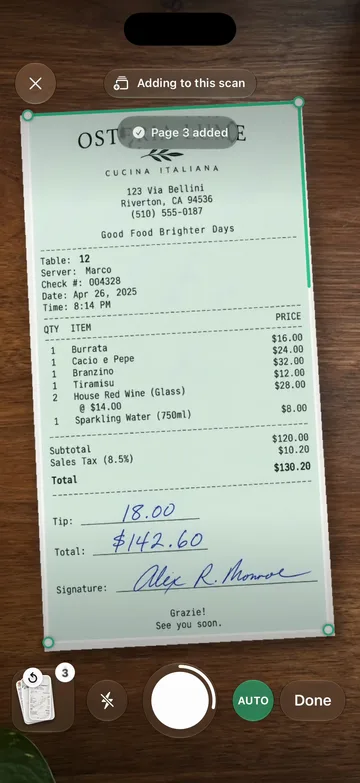
Tap the + beside the page thumbnail (or swipe past the last page) and choose Scan more pages. The camera says “Adding to this scan”. Lay the pages down one after another: AUTO takes each one once it holds still, the count on the pile goes up, and the hint says “Ready for the next page”. It won’t take the same page twice: it waits until the page moves or leaves the picture. The ↺ on the pile takes back the last shot. Tap Done when you have them all.
-
Put them in order
Back in Review, swipe through the pages. The buttons under the filters crop, rotate, retake or delete the page on screen, and from 2 pages on, a grid button opens Reorder Pages, where you drag pages up or down. Apply to All gives every page the filter of the page you’re on.
-
Save a single PDF
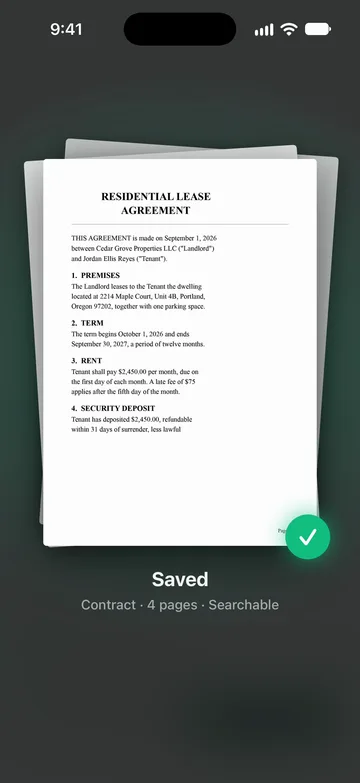
Tap Save 4 Pages (the button counts them). The pages become one document, each read for its text, and Share, then PDF, sends them as a single file.
Pages from Photos or Files
The Add pages card in Review also has Photos and Files, and Home’s Photos card starts a new document from pictures you already took. Either way, Review takes up to 30 pages at a time. Photos come in whole: if one shows the table around the page, tap the crop button, then Auto Detect (or drag the corners onto the page), and Done.
Add pages after you’ve saved
Open the document and tap Pages, then Add: Scan with Camera, From Photos or From Files. New pages go at the end; touch and hold one to move it, then tap Done.
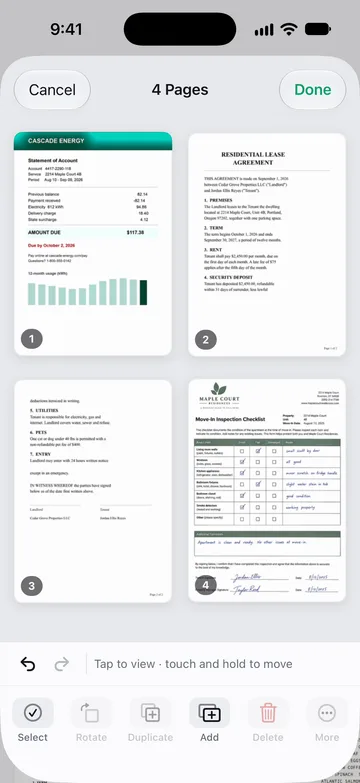
One thing to know: pages added from Pages come in straightened but without a filter. To make them match the rest, tap More, then Re-enhance, and pick the filter the document uses. It’s applied again to every page, from the photos Scanner One kept.
To join 2 documents you’ve already saved, tap Select in the Library, tick both and tap Merge. Merge PDFs on iPhone covers it.
Scanning and saving have no page or document limit on the free plan, and neither does adding, moving or deleting pages. Merge is one of the PDF tools, which are free 3 a week. On the free plan, a PDF you share carries a small “Scanned with Scanner One” mark on each page; Pro removes it.
If something goes wrong
- A page was skipped. If you swap pages fast, the outline may never hold still long enough. Wait for the ring around the shutter to fill, or tap the shutter yourself.
- A page was taken twice. Lifting a page and putting it back down counts as a new page. Tap ↺ on the pile right away, or delete the extra page in Review.
- The pages are out of order. Fix it in Reorder Pages before you save, or in Pages afterward: touch and hold, then drag.
- Photos stops at 30. Review holds 30 pages from Photos or Files at a time. Save, then add the rest from Pages, which takes 20 photos at a time.

