To scan a book without the curve, photograph the open book and let Scanner One fix it in Review: when it sees 2 pages side by side it offers Split into 2 pages, and when the lines bend toward the spine it offers Flatten lines. Both are free. Press the book as flat as you can before you shoot: the flatter the page, the less there is to fix, and part of the curve can’t be fixed afterward.
The free way
The scanners in Notes and Files straighten a page by its 4 corners, but they don’t split a spread or straighten curved lines. For a few pages, scan a page at a time: hold the book open with your thumbs in the outer margins, and drag the corners to the page you want.
Scan a book with Scanner One
-
Photograph the open book
Tap Scan Now and hold the iPhone over both open pages, with the whole spread in the picture. The camera outlines the book and takes the shot when the outline holds still. Keep your fingers in the outer margins.
-
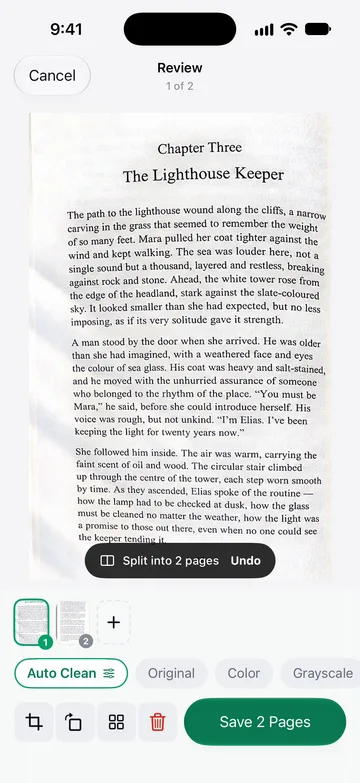
Split the spread
In Review, a spread gets Split into 2 pages under the page. Tap it, and the photo becomes 2 pages, cut in the empty band at the spine, never through the text. The banner’s Undo stays for 4 seconds.
-
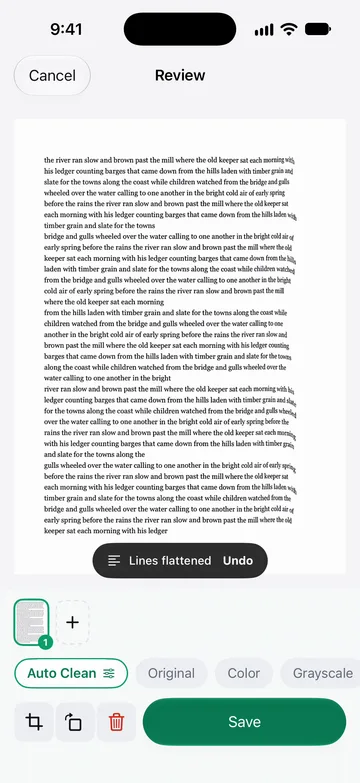
Flatten the lines
Each new page is then checked for curved lines. When they bend, Review offers Flatten lines: tap it and the lines come out straight.
-
Shoot the next spread
Tap the + beside the page thumbnails, choose Scan more pages, turn the page and shoot again. Every spread gets the same offers. Tap Save when you’re done: the pages are one PDF, and the text of each is read as it’s saved.
When Review offers each fix
Both offers come from the lines of text on the page, so a page of pictures, or one with only a few words, won’t get one. From Scanner One’s code:
- Split into 2 pages appears when the photo is wider than it is tall (1.1 to 2.4 times as wide), with at least 3 lines of text on each side and an empty band down the middle. A shadow at the spine helps; without one, the gap between the 2 pages must be at least 6% of the photo’s width, near its center.
- Flatten lines appears when at least 3 lines, and at least 15% of the page’s lines, sag by more than 1.5% of the page’s height, and only when the fix takes out at least half the bend. It works in up to 3 passes and drops any pass after which the page’s text reads worse.
What it doesn’t fix
- Squeezed letters near the spine. Where the page curves away from you, the text also looks narrower. Flatten lines straightens the lines; it doesn’t widen those letters again. Only a flatter page helps.
- Fingers. They stay in the picture. Keep them in the margins, then cut them off with the crop button in Review.
- A dark gutter. Auto Clean evens out the light, but a deep shadow at the spine can stay gray. Light the book from above rather than from one side.
Splitting and flattening are free, like every scan. On the free plan, the PDF you share carries a small “Scanned with Scanner One” mark on each page; Pro removes it.
If something goes wrong
- No split is offered. The photo isn’t wide enough (part of a page was cut off), or the text runs right into the spine. Get both whole pages in the picture, or scan a page at a time.
- “Couldn’t flatten the lines. Retake the page.” The fix didn’t work on this page. Press the book flatter and tap the retake button (the camera) under the page.
- Split stops appearing on a long scan. Review holds 30 pages, and once it’s full, a split isn’t offered. Save, then carry on in a new scan.
- The split looks wrong. Tap Undo in the banner within 4 seconds, or delete the 2 pages and shoot that spread again.

