A scan is a picture of a page, so before you can copy its words, something has to read them. Scanner One reads every page on your iPhone as you save it. Open the document, tap Text, and copy a page, all of it, or just the part you select. For a line or two from a paper in front of you, the iPhone’s own Live Text is free and quick.
The free way: Live Text
- Open the Camera and point it at the page. When a yellow frame appears around the text, tap the Live Text button in the corner.
- Touch and hold the text, drag the grab points over what you need, and tap Copy.
- Paste it where you want it.
Live Text works on photos too: open one in Photos, tap the Live Text button, then touch and hold the text. In Notes, Scan Text (in a note’s Attachments menu) puts the text the camera sees into the note.
That is enough for a phone number or a paragraph. For a document of several pages, or text you’ll want again next month, it means pointing the camera at every page each time.
Copy text with Scanner One
-
Scan and save
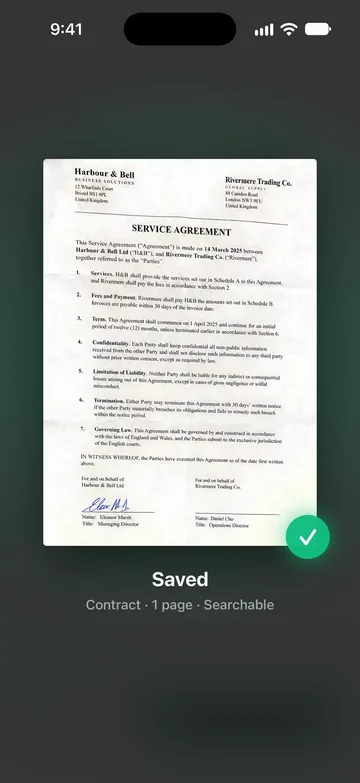
Tap Scan Now on Home, photograph the page, and tap Save. The page is read on the phone as it saves, in any of 29 languages, with no connection needed and nothing to switch on. A photo or PDF you already have: tap Photos or Files on Home.
-
Tap Text
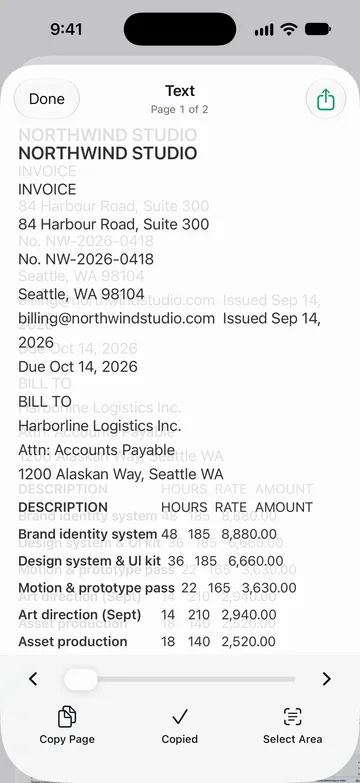
On the document, tap Text. The page’s words appear as real text, one page at a time; on iOS 26 they’re laid out as a title, paragraphs, lists and tables. Touch and hold to select any part, or tap Copy Page, or Copy All for every page. A one-page document has a single Copy.
-
Copy just one part
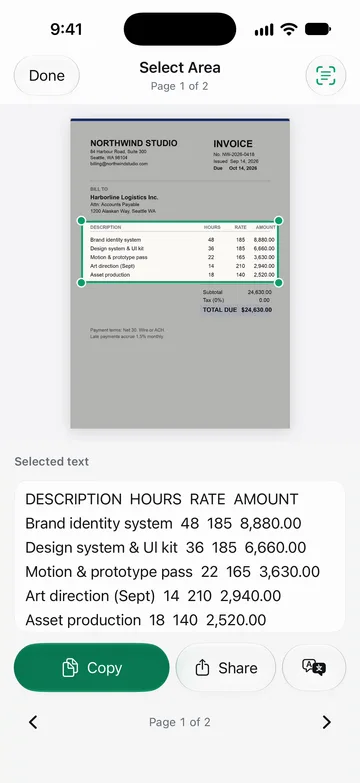
Tap Select Area and drag a box over what you want, such as one column or a table. The words appear under Selected text; tap Copy.
-
Keep the text as a file
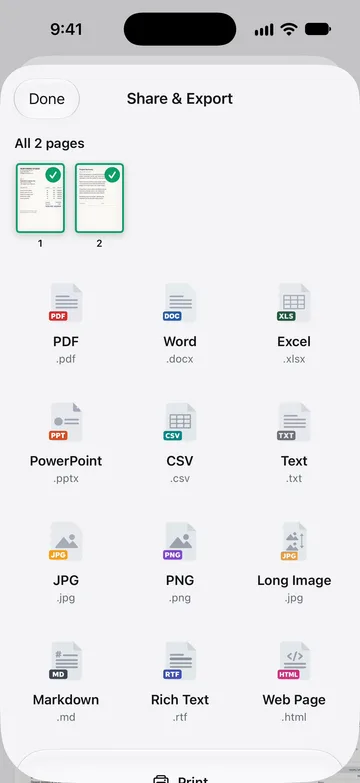
Tap Share, then Text for a plain .txt file, or Word for a document that keeps headings, lists and tables. A shared PDF carries the words too, as an invisible layer, so whoever opens it can select and search them.
Tables paste as columns
On iOS 26, a table copied from the Text screen has a tab between its cells and a line for each row, so it pastes into Numbers or Excel as columns instead of one long run of words. List items keep their numbers, or get a bullet.
Reading the text, copying it and sharing it as Text are free, with no limit. Word exports count toward the free plan’s PDF tools, 3 a week, shared with the other tools; Pro removes the limit.
If something goes wrong
- The tile says Make Searchable, not Text. The document has no text yet, as with a long scanned PDF you imported. Tap Make Searchable: Scanner One reads every page, and the tile turns into Text.
- “No recognized text” or “Language not supported”. Scanner One found no words it can read, or the page is in a language this iPhone can’t read. Try Select Area on a clear part of the page, or scan it again closer and in better light.
- Letters come out wrong, like 0 for O. The page was too small in the frame or not sharp. Scan it again with the page filling most of the screen and the phone steady.
- Columns run together. Before iOS 26, the Text screen reads a page in rows straight across. Use Select Area on one column at a time.

