Scan the card with Scanner One, open it, and tap Add to Contacts. Scanner One reads the card on your iPhone and opens a new contact with the name, job title, company, phone numbers, email, website and address already filled in. You check it and save it. With the iPhone alone, you can copy the details across one at a time.
The free way: Live Text
- Open the Camera and point it at the card. When a yellow frame appears around the text, tap the Live Text button.
- To call or email right away, tap the quick action for the number or address at the bottom of the screen.
- To keep the details, touch and hold each one, tap Copy, and paste it into a new contact in Contacts.
That’s fine for one card. For a stack of them after a conference, it’s a lot of copying and pasting.
Add a card with Scanner One
-
Scan the card
Tap Scan Now on Home and hold the phone over the card, on a darker surface so its edges stand out. Tap Save. Scanner One reads the card and files it as a Business Card.
-
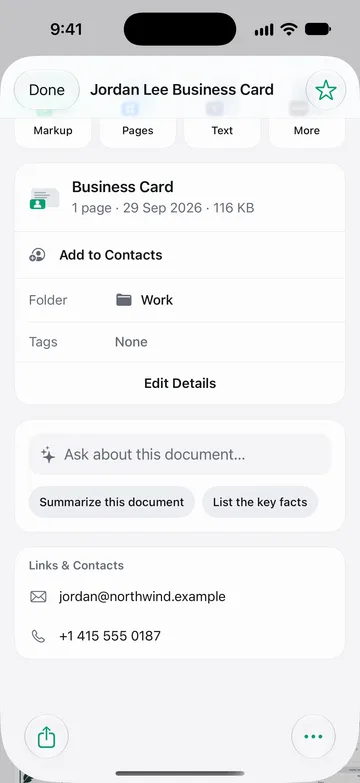
Tap Add to Contacts
On the card’s screen, scroll down to its details and tap Add to Contacts. While it reads, the row says Reading Card…; then a new contact opens with what was on the card.
-
Check it and save
The new contact is the iPhone’s own contact form. Fix anything the card printed in an unusual way, such as a company name taken for a person’s name, then save it. Scanner One doesn’t ask to see your contacts: it only hands the new one to iOS.
-
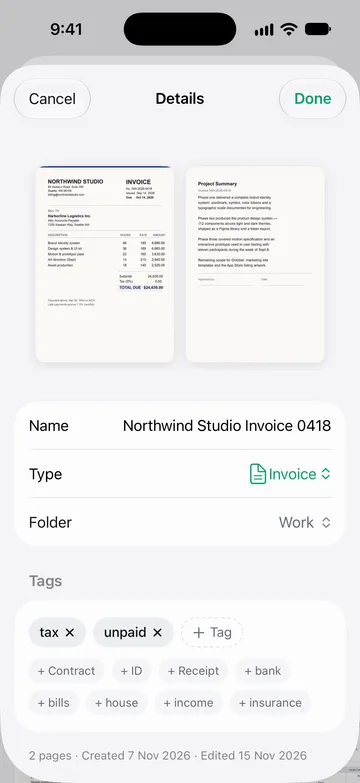
Not filed as a business card?
If there’s no Add to Contacts, the scan was filed as another type. Tap Edit Details, set Type to Business Card, and tap Done.
Why keep the card as a scan
- The card stays in your Library, so a search for any word on it, a company, a street or a job title, finds it later. See how to find a word in your documents.
- Phone numbers and email addresses on the card are listed under Links & Contacts: tap one to call or write.
- A contact QR code printed on the card is read too, and its details go into the same new contact.
- Add to Contacts reads the card on your iPhone. Nothing is sent anywhere to read it.
Scanning a card, reading it and Add to Contacts are free. Scanner One files new scans by type on its own (so it knows a card is a Business Card) for 10 documents a month on the free plan; after that, set the type yourself in Edit Details, or go Pro for no limit.
If something goes wrong
- “No contact details found”. The card’s words weren’t read, often because of glare on a glossy card or very small type. Scan it again closer, turned so the light doesn’t bounce off it.
- A detail is in the wrong field. Unusual layouts can fool any reader. Move it to the right field in the new contact before you save.
- You closed the contact form without saving. Nothing was added. Tap Add to Contacts again.

