To find a word in one PDF, open it in the Preview app on your iPhone and tap Search. That works best on a PDF that holds its words as text, like one saved from Word or a website. To find which of your documents has the word, including pages you scanned yourself, Scanner One reads every page when it saves and searches all of them at once.
The free way: Preview
- Open the PDF in the Preview app (iOS 26).
- Tap the Search button and type a word or phrase. In the search options you can pick Whole Word or Match Case.
- Use the arrows to go from one match to the next.
If you scanned the paper in Notes, Notes’ own search looks in the text of scanned documents too. A PDF attached to a note is searched with Find in Note, after you turn on Include Attachments in its options.
Preview searches one file at a time. If a word you can see on the page isn’t found, the PDF is most likely pictures of pages with no text inside.
Find it with Scanner One
-
Search every document
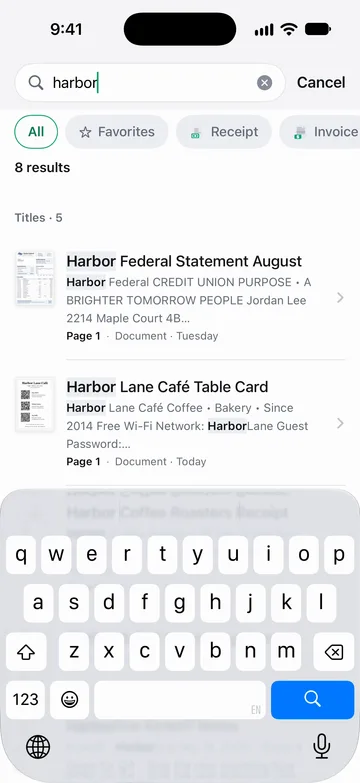
Tap Library and type in the search field at the top. Scanner One looks in names, the text of every page, types, tags, folders and details like totals and dates. Each result shows where it matched: the line with your word in it, and its page.
-
Open the page
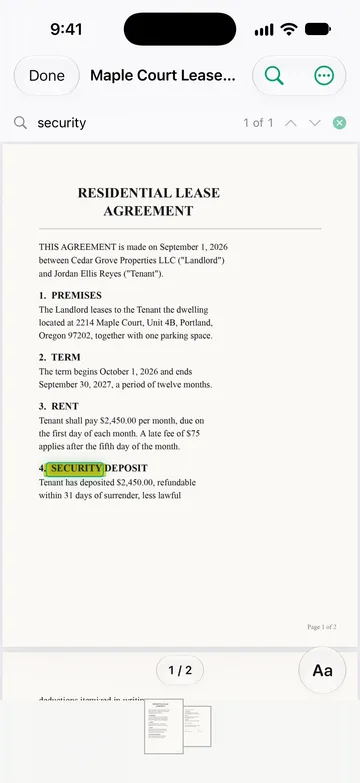
Tap a result. A match inside the pages opens the document in the Reader on that page, with the words highlighted.
-
Search inside one document
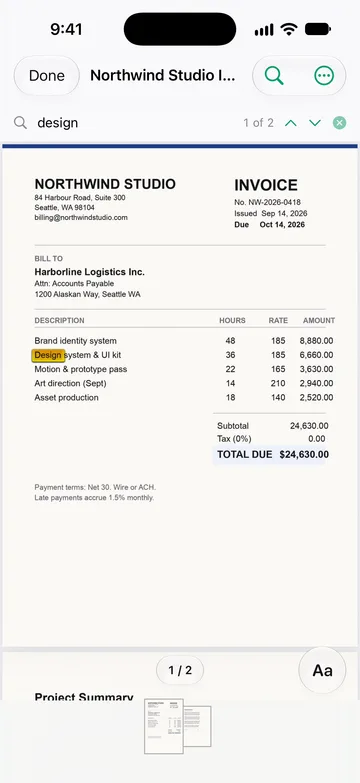
In the Reader, tap the magnifying glass at the top and type. The count shows which match you’re on, such as 1 of 2, and the arrows step through the rest.
-
Make a PDF searchable
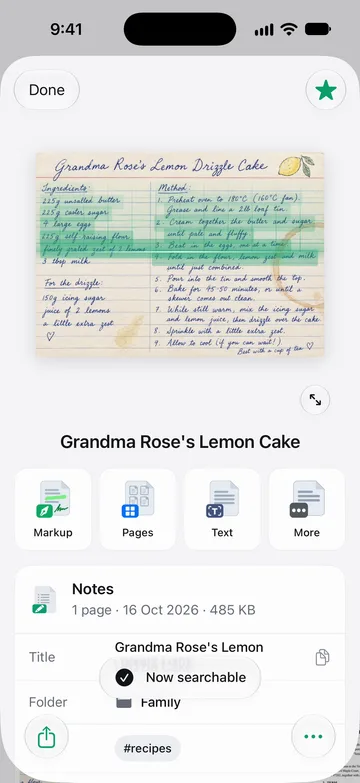
A document whose tile says Make Searchable instead of Text has no words in it yet, like a long scanned PDF you imported. Tap it: Scanner One reads each page, says Now searchable, and from then on search finds it.
How Scanner One’s search reads what you type
- Every word must match, in any order: “lease deposit” finds the lease that mentions a deposit.
- Capitals and accents don’t matter, and part of a word is enough: “secur” finds “security”.
- Put words in double quotes to find them side by side.
- Small words like “the”, “my” and “when” are skipped, so “when is my lease due” looks for “lease” and “due”.
- Numbers match with or without their commas: 1250 finds 1,250.00.
Text recognition and search are free, with no limit, on every page you scan or import.
If something goes wrong
- The Reader says “Not searchable yet”. The document has no text. Close the Reader and tap Make Searchable on the document.
- A word you can see isn’t found. A smudge or a fold can make one letter read wrong. Search for part of the word, or for another word on the same page.
- A document you know is there doesn’t come up. Documents in a locked folder are left out of the Library’s search. Open the folder and search there.
- Too many results. Add a second word, put a phrase in quotes, or tap a type under the search field, such as Receipt.

