iPhone has no built-in way to turn a PDF into a Word file. If you only need the words, you can copy them out of the PDF for free. If you need a .docx you can edit, with its headings, lists and tables still in place, Scanner One writes one on the phone from a PDF or from a scan of a paper document.
The free way: copy the text
Open the PDF in Files (or in Preview on iOS 26), touch and hold a word, drag the handles over the text you need, tap Copy, and paste it into Pages or Word. On a photo of a page, Live Text in Photos lets you select the words the same way: copying text from a scan has the details.
That’s fine for a paragraph or two. For a whole document it’s slow, and the structure is lost: headings become plain lines, numbered lists become typed numbers, and tables turn into runs of words.
Export to Word in Scanner One
-
Tap PDF to Word
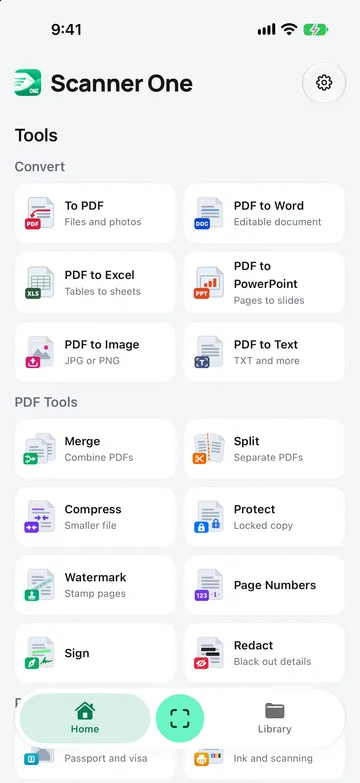
Scroll Home down to Tools, tap PDF to Word and pick the document. A PDF from email or Files comes in first through Files on Home; a paper document, scan it with Scan Now.
-
Choose the pages
For a document of several pages, keep all of them or tap Choose Pages and set the first and last page. Tap Export to Word. A scan without text yet is read on the iPhone first, and the document keeps the text it found.
-
Share or save the Word file
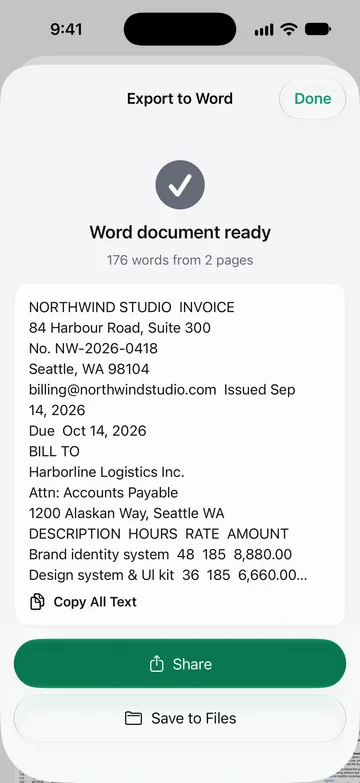
Scanner One says how many words it found, here “176 words from 2 pages”. Tap Share to send the .docx or open it in Word, or Save to Files to keep it in iCloud Drive or another folder. Copy All Text copies only the words.
From a document you have open, it’s quicker: tap Share, untick any pages you don’t need in the row at the top, then tap Word. It runs at once.
What the Word file keeps
Scanner One builds the file from each page’s structure, not from a picture of it:
- Title and headings: In a PDF with its own text, the size most of the text is set in counts as body text. Sizes at least 15% larger that carry no more than a third of the text become Heading 1 and Heading 2, and the largest type, when it’s used only at the top of page 1, becomes the title. On a scan, a line whose letters are a quarter larger than the body becomes Heading 2, and 1.6 times larger, Heading 1.
- Paragraphs: Lines that run to the edge and wrap are joined, so the text reflows when you edit it in Word. A line that stops short, like a line of an address, keeps its break.
- Lists: Bullets become Word bullets. Items numbered in order, such as 1., b) or (iv), become real Word numbering that renumbers itself as you edit. Numbers out of order stay as typed.
- Tables: On a scan read on iOS 26, Apple’s document reader finds the tables, and they become real Word tables with a bold, shaded header row that repeats if a table runs onto the next page. From a PDF with its own text, a table’s rows come out as lines of text: the invoice above is one.
- Pages: A page break after each page of the original.
What doesn’t come over: pictures, logos, signatures, stamps, colors, fonts and columns. It’s a file of words to edit, not a copy of the look. When the other person needs the document exactly as it is, send the PDF.
Word export shares one count with the PDF tools and the Excel, PowerPoint and CSV exports: free accounts get 3 a week; Pro removes the limit. On the free plan, the Word file has a “Scanned with Scanner One” line in the footer of each page; Pro removes it. Rich Text in Share & Export is free and doesn’t count: it’s written from the same headings, lists and tables, and Word, Pages and TextEdit open it.
If something goes wrong
- It says “No text to export”. There are no words Scanner One can read: a photo, or very faint print. Scan the page again flat, in good light, then export.
- Headings came out as plain text. On a scan a heading counts only when its letters are clearly bigger than the body, at least a quarter. Bold text at body size stays a paragraph; set those headings in Word.
- A table came out as lines. The PDF has its own text, so its table rows are lines in Word. If you need the numbers in a grid, on iOS 26 Excel in Share & Export looks for tables on the pages and puts each one on its own sheet.
- Some words are wrong. A scan’s text is only as good as the photo. Fix them in Word, or scan the page again with less shadow and glare.

