A PDF is big because of its pictures: scanned pages, photos, logos. Making it smaller means saving those pictures with fewer pixels and stronger compression, while the words, which take little room, stay as they are. On iOS 26, the built-in Preview app can do this for free. Scanner One’s Compress gives you 3 levels, shows the size before you commit, and keeps scanned pages searchable.
The free way: Preview on iOS 26
- Open the PDF in Preview.
- Tap the Actions menu beside the file name, then Export.
- Choose PDF, then turn on Optimize Images for Screen and Save Images as JPEG.
- Tap Done, pick a folder and tap Save.
Those are Apple’s own steps. You don’t see the new size until it’s saved, and there’s no level to choose. iOS 17 and 18 have no Preview on iPhone, and the Files app’s Compress makes a ZIP archive, not a smaller PDF.
If the file is only too big to email, you may not need to shrink it at all. When a message is over your email provider’s limit, Mail offers to send the attachment with Mail Drop, which takes files up to 5 GB and keeps them for 30 days (Apple: Mail Drop limits). Gmail’s limit for attachments is 25 MB (Google).
Compress a PDF in Scanner One
-
Open Compress
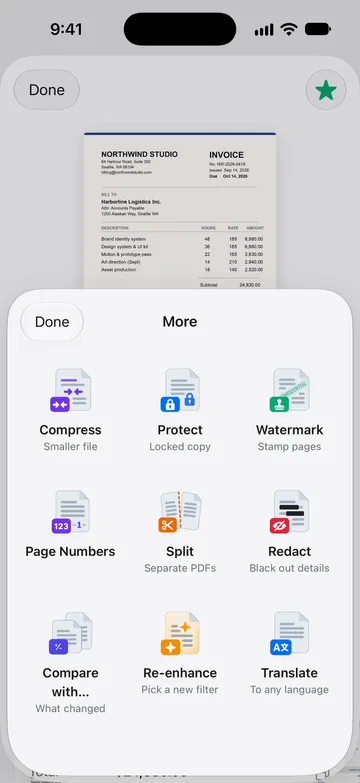
Open the document, tap More, then Compress. A PDF from email or Files comes in first through Files on Home. The Compress card in Home’s Tools works too, but only from a document can the smaller file replace it.
-
Pick a quality
Choose Best Quality (sharp enough to print), Balanced (clear on any screen) or Smallest (best for email). Detail at this quality shows a close-up of the top of page 1 at that level, and Size shows the original and about how big the result will be, worked out from up to 3 sample pages. A PDF with real text has no levels (see below). Tap Compress.
-
Keep it or send it
Replace Document makes this document the smaller one; the message that follows has Undo. Save as a Copy keeps both. Share Smaller File sends it without keeping it.
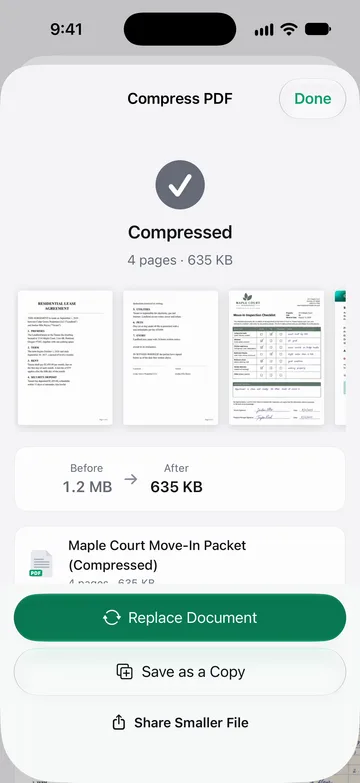
In the screen above, a 4-page packet went from 1.2 MB to 635 KB. If the result wouldn’t be at least 3% smaller, Scanner One says Already compact and offers nothing to replace.
What the 3 levels do
For scans and other PDFs whose pages are pictures, Compress saves each page again as a JPEG:
| Level | Longest side of a page | JPEG quality | On a US Letter page |
|---|---|---|---|
| Best Quality | 2,400 pixels | 72 of 100 | about 218 pixels per inch |
| Balanced | 1,700 pixels | 50 of 100 | about 155 pixels per inch |
| Smallest | 1,200 pixels | 32 of 100 | about 109 pixels per inch |
It never makes a page finer than the scan inside it, and the invisible text layer goes back exactly over the words, so a compressed scan stays searchable.
A PDF with real text (a bank statement you downloaded, a Word file saved as PDF) has no levels. Scanner One only saves the pictures inside it again as JPEGs at screen resolution, and the text and drawings stay as they are: the screen says “Text stays selectable. Only images are compressed.” That’s the same thing Preview’s 2 switches do, so a PDF that is mostly text hardly shrinks in either.
Which to pick: Smallest or Balanced for email and upload forms, Best Quality for anything you may print. Small print softens first, so check the close-up before you send a form or a receipt.
Compress is one of the PDF tools. Free accounts get 3 a week, one count shared with the other PDF tools and Word, Excel, PowerPoint and CSV exports; Pro removes the limit. Replacing the document doesn’t count a second time. On the free plan, PDFs you share carry a small “Scanned with Scanner One” mark at the bottom right of each page; Pro removes it.
If something goes wrong
- It says Already compact. The PDF is mostly text, or its pictures were compressed before. On a scan, try Smallest; on a text PDF there’s nothing more to take out.
- Small print came out blurry. Tap Undo in the message right after replacing. Later, a PDF you imported can go back to the file as it came in: tap the ⋯ button at the bottom right, then History, then Revert to Original (this undoes every other change made in Scanner One too). A scan’s full-size pages are replaced along with it, so pick Save as a Copy for anything you may print.
- It says “Annotations become part of the pages”. The scanned PDF had comments or highlights; in the smaller file they’re drawn into the page and can’t be edited.
- The upload form still says it’s too big. Check the form’s limit, send only the pages it asks for, or cut the PDF into parts: how to split a PDF.

