To email a paper document from your iPhone, scan it into a PDF and attach that. Mail can do both by itself: Scan Document is built into the message you’re writing, and the scan goes in as a PDF. Scanner One is worth it when the pages need cleaning up, when the person you send it to should be able to search and copy the text, or when you want a copy you can find again next year.
The free way: Mail’s own scanner
- In Mail, start a message and tap in its body.
- Tap the attachment button above the keyboard (Apple calls it Insert Attachment Actions), then Scan Document.
- Hold the iPhone over the page; it captures it by itself. Tap Keep Scan, scan any other pages, then Save.
The scan is added to the email as a PDF (Apple’s steps). For most emails that’s enough. Nothing is kept anywhere you’d look for it later, though: once it’s sent, the scan lives only in your Sent folder.
Scan and email with Scanner One
-
Scan the pages
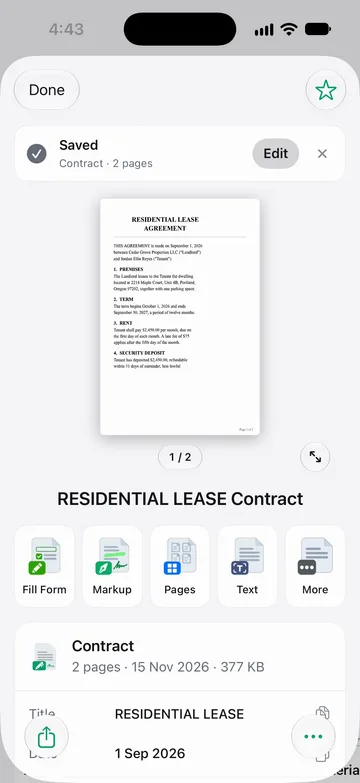
Tap Scan Now on Home and photograph the first page; it opens in Review. For more pages, swipe past the last page to Add pages, tap Scan more pages, photograph each page in turn, then tap Done. Pick a filter and tap Save, or Save 2 Pages. The document opens with Saved at the top: tap Edit there to give it a name the recipient will recognize, because the PDF takes the document’s name.
-
Choose the pages
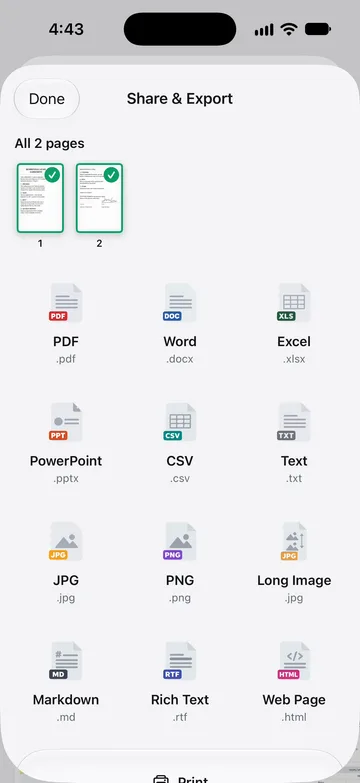
Tap Share. In a document of several pages, a row of its pages sits at the top, all ticked: tap a page to leave it out, or touch and hold one for Only This Page.
-
Send it as a PDF
Tap PDF, then Mail in the share sheet, or the email app you use. Only the ticked pages go. With some left out, the file’s name says which, such as “Lease (p2–4).pdf”.
What Scanner One adds
- Cleaner pages: Review starts every page on Auto Clean, and B&W, Grayscale, Receipt and the other filters are a swipe away.
- Text inside the PDF: Every page is read when you save it, in 29 languages, and the text sits invisibly under each page of the PDF you send, so the person who gets it can search it and copy from it.
- A copy you can find: The document stays in your Library, where search finds it by any word on its pages.
- A sensible size: In these screens a scanned page comes to about 200 to 500 KB as a PDF (the 2-page lease above is 377 KB), so even a 10-page document stays far under Gmail’s 25 MB attachment limit (Google).
Scanning and sharing a PDF are free, with no limit. On the free plan, each page you send carries a small “Scanned with Scanner One” mark at the bottom right; Pro removes it. With Pro, you can also save your own address in Settings, under Auto-export; with Apple’s Mail app set up, Email to Me then appears in Share & Export to send a document to yourself.
If something goes wrong
- Your email app isn’t in the share sheet. Scroll the row of apps to the end and tap More to find it, or save the PDF to Files and attach it from your email app.
- The email bounces as too big. Mail offers to send large attachments with Mail Drop, up to 5 GB, kept for 30 days (Apple). Or make the file smaller first: how to make a PDF smaller.
- A page is missing. In Share & Export, a faded page in the row isn’t sent. Tap it to tick it, or tap Select All.
- They ask what the mark in the corner is. It’s the free plan’s “Scanned with Scanner One”. Pro takes it off everything you share from then on, with nothing to redo.

