An iPhone can lock a PDF with a password for free: on iOS 26, Preview has a Lock command. It locks the file itself, so you need to make a copy first if you want to keep an open one. Scanner One’s Protect always locks a copy for sending and leaves your document open, and it can also stop the copy from being printed or copied.
The free way: Preview on iOS 26
- Open the PDF in Preview. To keep a copy without a password, tap the Actions menu beside the file name, then Duplicate.
- Tap the Actions menu beside the file name, then Lock.
- Type the same password in Password and Verify, then tap Done.
Those are Apple’s steps. On iOS versions before Preview came to iPhone, look for Lock PDF in the menu next to an open PDF’s name in the Files app.
Lock a copy with Scanner One
-
Open Protect
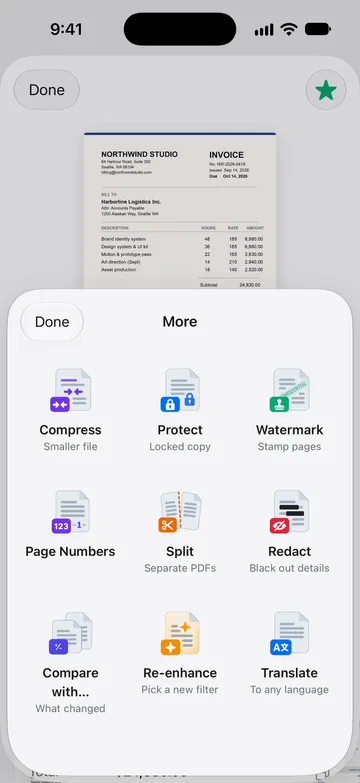
Open the document, tap More, then Protect. Or tap the Protect card in Home’s Tools and pick the document. A PDF from email or Files comes in first through Files on Home.
-
Choose the password
Type it in Password and again in Confirm Password. The bar under it rates it: weak under 8 characters, and strong at 12 characters with 2 kinds (lowercase letters, capitals, numbers, symbols), or at 10 with 3 kinds. Leave Allow printing and copying on, or turn it off so the copy can be read but not printed or copied. Tap Lock a Copy.
-
Send the locked copy
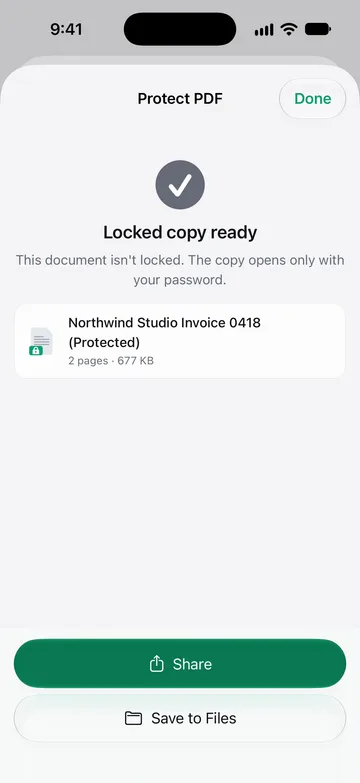
“Locked copy ready” means the copy, named with “(Protected)”, opens only with your password. Tap Share to send it, or Save to Files to keep it. Your document in Scanner One stays open: the Library never holds a locked file.
What Protect does to the file
- An open password: Without it, nobody sees the pages.
- A second password you never see: Scanner One also sets an owner password, made at random for each copy. It holds the printing and copying setting, so someone who has your password can open the copy but can’t lift the restriction.
- Printing and copying: With the switch off, the copy allows reading, screen readers and form filling, but not printing or copying its text. PDF apps are expected to respect that, and most do; a few ignore it, so don’t count on it for anything secret. The open password is the real lock.
- A check before you get it: Scanner One opens the finished copy to make sure it’s locked and that your password opens it.
- No password kept: Scanner One doesn’t store the password. If it’s forgotten, the copy stays shut, but your document is still open in Scanner One: lock a new copy.
Protect is one of the PDF tools. Free accounts get 3 a week, one count shared with the other PDF tools and Word, Excel, PowerPoint and CSV exports; Pro removes the limit. On the free plan, the locked copy carries a small “Scanned with Scanner One” mark at the bottom right of each page, added before it’s locked; Pro removes it.
Taking a password off a PDF
If someone sends you a locked PDF, tap Files on Home and pick it. Scanner One asks for the password once and keeps an unlocked copy in your Library, so it opens without it from then on. Bear in mind that this copy has no password at all.
If something goes wrong
- Lock a Copy is grayed out. A field is empty or the 2 passwords don’t match. The line above the button says which.
- The other person can’t open it. Send them the password another way, by phone or text message, never in the same email as the file.
- They can open it but can’t print. Allow printing and copying was off. Lock a new copy with it on.
- It opened without asking for a password. The file you sent was the document itself, not the copy. Send the file whose name ends in “(Protected)”.

