A phone scan doesn’t have a fixed DPI. DPI, dots per inch, is how many pixels of the picture cover each inch of paper, so it depends on how big the page is in the photo. In Scanner One, a Letter page that fills the width of the camera screen comes out at about 218 dpi, and with a little desk around it, 175 to 200. That’s sharp enough to read and print typed pages, but short of the 300 dpi some forms ask for. Here is where those numbers come from, and how to reach 300.
Where the number comes from
Scanner One’s camera takes a 12-megapixel photo: 3,024 pixels across and 4,032 down, with the phone upright. It finds the page in that photo, cuts it out, squares it up and saves it at full size, without scaling it down. So the saved page has exactly as many pixels as it covered in the photo, and its DPI is plain division: the pixels across the page ÷ the page’s width in inches.
Why the screen matters
The camera’s picture fills your iPhone’s tall screen, so you see the photo’s full height but only the middle of its width: about 61% of it on a tall-screen iPhone such as the iPhone 17 Pro, 75% on an iPhone SE. The photo has more desk at the sides than you saw. A page that fills the screen’s width therefore covers only about 61% of the photo’s width.
These are the page sizes Scanner One’s straightening gives, held square to the camera of an iPhone 17 Pro:
| The page fills this much of the screen’s width | Pixels across | Letter (8.5 in) | A4 (8.27 in) |
|---|---|---|---|
| All of it | 1,855 | 218 dpi | 224 dpi |
| 90% | 1,670 | 196 dpi | 202 dpi |
| 80% | 1,484 | 175 dpi | 179 dpi |
| 70% | 1,299 | 153 dpi | 157 dpi |
How to get 300 dpi
Use more of the photo. The iPhone’s own Camera app shows the whole frame in its viewfinder, and its photos are 12 megapixels or more. A Letter page across 80% of the viewfinder’s width is at least 2,420 pixels wide (285 dpi); at 85%, at least 2,570 (302 dpi). Scanner One keeps every pixel when you bring that photo in:
-
Take the photo in Camera
Open the Camera app, hold the phone square over the page, and let the page fill the viewfinder with a thin band of desk around it. Take the photo.
-
Bring it into Scanner One
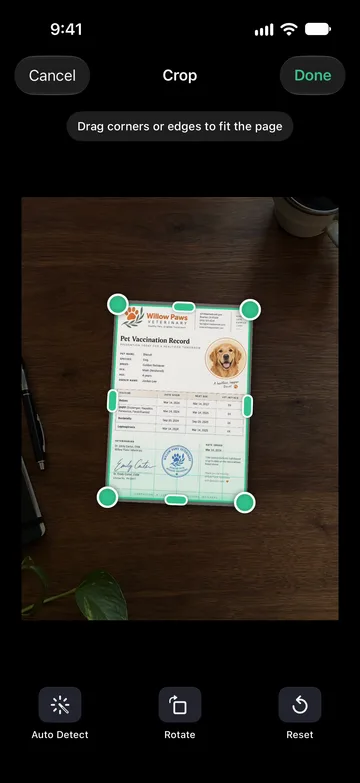
On Home, tap Photos and pick the photo. In Review, tap the crop button, the first icon under the filters: the corners find the page. Tap Done, then Save.
-
Keep the page size
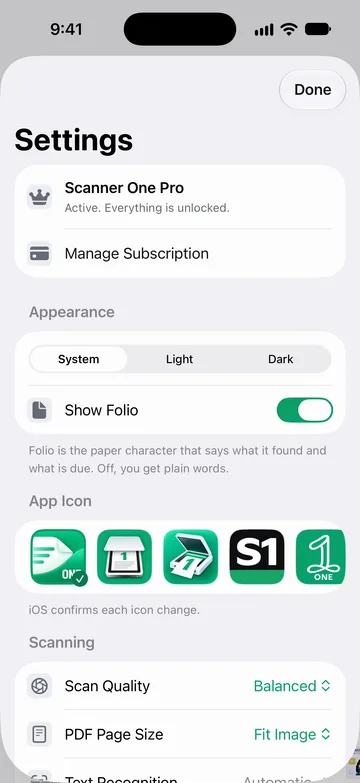
In Settings (the gear on Home), under Scanning, leave PDF Page Size on Fit Image unless an office asks for Letter or A4 pages.
What the PDF says
A photo from a phone can report 72 dpi in its file details. That figure is a label stored in the file, not the detail in it; the pixel count is what matters.
In Scanner One, PDF Page Size decides how big each page is in the PDF:
- Fit Image, the default, makes every page 8.5 inches wide, exactly a Letter page’s width, and as tall as its shape needs. The picture fills the page, so its DPI reads as the pixels across ÷ 8.5.
- Letter or A4 puts each page on that paper with a 1/3-inch margin on every side, so a full-page scan prints at about 92% of its real size.
Scan Quality, just above it, sets how hard the pages are compressed (Compact, Balanced or Maximum), not how many pixels they keep. The DPI stays the same; fine detail and file size change.
What lowers it
Compress, in a document’s More, rescales each page so its long side fits a limit. On a Letter page (11 inches tall) and an A4 page (11.69 inches):
| Level | Long side | Letter | A4 |
|---|---|---|---|
| Best Quality, “Sharp enough to print” | 2,400 px | 218 dpi | 205 dpi |
| Balanced, “Clear on any screen” | 1,700 px | 155 dpi | 145 dpi |
| Smallest, “Best for email” | 1,200 px | 109 dpi | 103 dpi |
A Letter page shot whole with Scanner One’s camera is 2,400 pixels tall or less, so Best Quality leaves its pixels alone and only compresses harder. When a form asks for 300 dpi, send the PDF as you saved it.
Scanning, bringing in photos and saving PDFs are free, with no limit and at full size. Compress is one of the PDF tools: free for 3 a week, shared with the others, and without a limit on Pro.
If something goes wrong
- An upload form says your file is 72 dpi. That’s the label, not the detail. If the form takes PDFs, send the PDF: its pages have a real size in inches.
- The numbers are fine but the scan looks soft. Pixels aren’t sharpness: a shaky or out-of-focus shot has plenty of pixels and little detail. Hold the phone steady in good light and shoot again. See how to fix a blurry scan.
- The file is too big to send. Compress at Best Quality first. More in how to make a PDF smaller.

