A scan starts as a photo. What makes it a scan is what happens next: the page is found and cut out of the picture, squared up so its corners are right angles, its light evened out so the paper reads white, and its words read so you can search and copy them. It’s saved as a page of a PDF. A photo keeps the desk, the tilt, your shadow and the color of the lamp, and the file holds no text, only pixels. Keep a photo when it’s just for you; send a scan when someone else has to read it, print it or file it.
What changes between the photo and the scan
| Photo | Scan | |
|---|---|---|
| What’s in it | The page, the desk and anything else in the frame | Only the page, cut along its edges |
| Shape | Tilted, wider at the end nearer the lens | Squared up |
| Light | Shadows, glare and the lamp’s color | Paper evened out to white, ink kept dark |
| Words | Pixels; the file holds no text | Read and stored as text, so any app can search them |
| Pages | One picture each | One PDF for the whole document |
What a scan doesn’t change is the detail. Scanner One cuts the page out of the full photo (12 megapixels, from its own camera) and saves it at that size, without scaling it down. A Letter page that fills the width of Scanner One’s camera screen comes out about 1,855 pixels across: about 218 dots per inch. What DPI is a phone scan has the arithmetic.
When a photo is fine
A photo is enough for a reminder to yourself: a parking spot, a recipe, a notice on a wall. Anything that leaves your hands, such as a form, a receipt for an expense report or a page for a landlord, reads and prints far better as a scan.
The free way
Your iPhone already has a document scanner. In Notes, open a note, tap the Attachments button, then Scan Documents; the Preview app on iOS 26 has Scan Documents too. Both find the edges, square the page up and save a PDF. If you scan now and then, that may be all you need.
Turn a photo you already took into a scan
Scanner One can make a scan out of a photo in your library.
-
Bring in the photo
On Home, tap Photos and pick the photo. It opens in Review, the screen where you check a scan before you save it.
-
Cut out the page
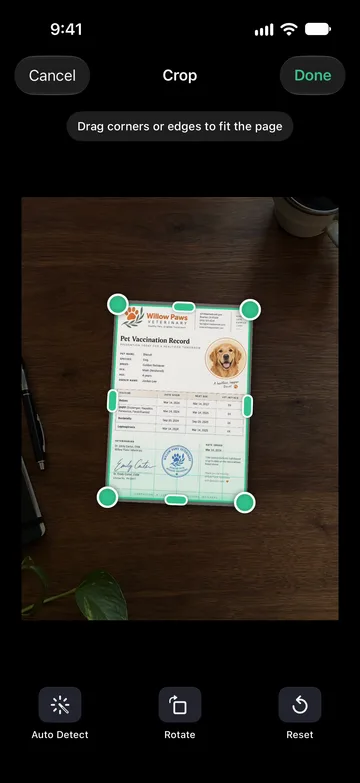
Tap the crop button, the first icon under the filters. Scanner One finds the page’s corners in the photo; drag any corner that missed, or tap Auto Detect to look again. Tap Done and the page is cut out and squared up.
-
Pick a look
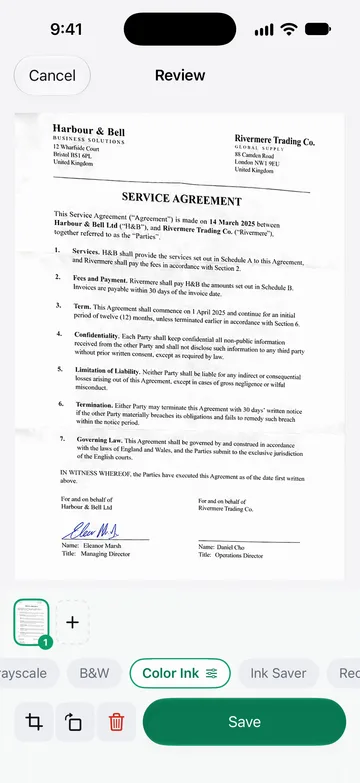
Auto Clean is already on: it evens out the light and whitens the paper. B&W suits a typed letter, Color Ink keeps colored stamps and signatures in color, and Original leaves the page as it was shot. Press and hold the page to see it without the filter.
-
Save
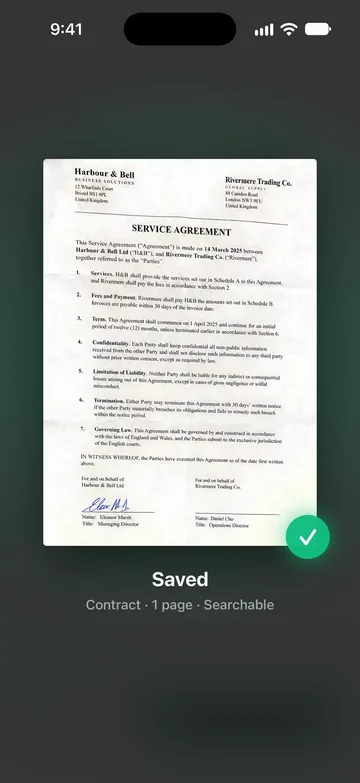
Tap Save. The page is read as it saves, so its words can be searched and copied.
Next time, start with the camera: tap Scan Now and Scanner One finds the page while you hold the phone, takes the shot when the corners lock, and goes straight to Review.
Scanning, bringing in photos and saving PDFs are free, with no limit. On the free plan, pages you share carry a small “Scanned with Scanner One” mark in the corner; Pro removes it.
If something goes wrong
- “Edges not found”. The page and what’s under it are too alike, like white paper on a white table. Put it on something darker and shoot again, or drag the corners yourself in Crop.
- A shine is still there. Auto Clean evens out shadows, but glare is light that hid the print underneath, and no filter can bring it back. Tilt the page or move the light, then shoot again. More in removing shadows and glare.
- A colored band turns pale. Filters that whiten the paper can take a big block of color, such as a green header, for a patch of light. Pick Original or Photo for that page.
- It’s blurry. No filter adds detail the photo doesn’t have. Hold the phone steady in good light and shoot again.

