You can turn photos into one PDF on iPhone with the Files app: save the photos to Files, select them, and use Create PDF. That’s all you need for pictures of places and people. When the photos are of paper (a receipt, a form, a page of notes), Scanner One is worth it: it crops each photo to the page, cleans it up and reads the text, so the PDF looks like a scan and can be searched.
The free way: Files
- In Photos, select the photos, tap the Share button, then Save to Files, and choose a folder.
- Open that folder in Files, tap Select (on some versions it’s in the More menu at the top right) and tap each picture.
- Tap the More button at the bottom right, then Create PDF. On some versions of iOS it sits under Quick Actions.
The PDF appears in the same folder, one photo to a page. Print can make a PDF too: tap Print in the Share menu, then the Share button on the print screen, and Save to Files. Either way each page is the whole photo, table and shadows included.
Photos of documents to a PDF in Scanner One
-
Pick the photos
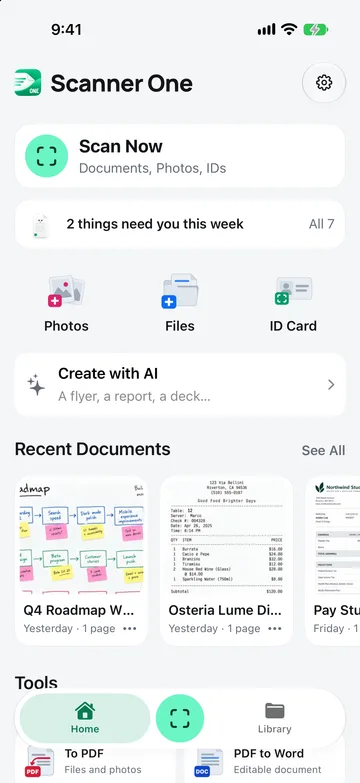
On Home, tap Photos and pick up to 30 photos. They open in Review, one page each, on the Auto Clean filter.
-
Crop each one to the page
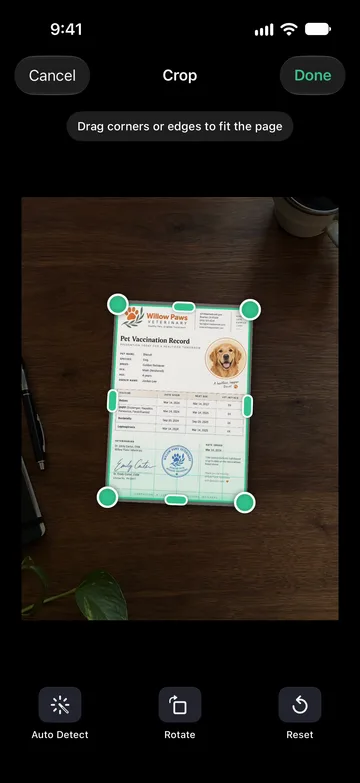
A photo you import keeps the whole picture until you crop it. Tap the crop button beside Save: Auto Detect looks for the page’s edges, and you can drag any corner or edge to fit. Rotate turns a sideways page. Tap Done, then swipe to the next page.
-
Choose the look and save
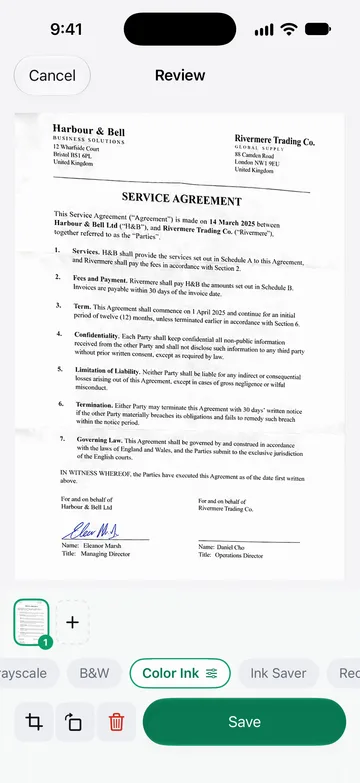
Swipe the filters under the page. Auto Clean cleans up the paper, B&W is pure black and white, and Original keeps the photo as it was. Tap Save, or Save 4 Pages when there are several. Every page is read as it’s saved, so the text can be searched and copied.
-
Send it as a PDF
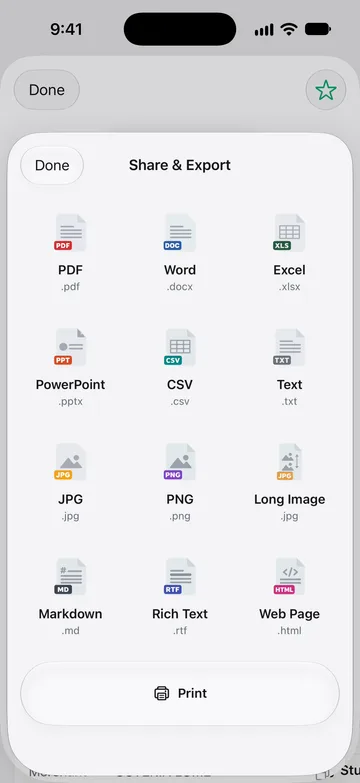
The new document opens. Tap Share, then PDF, and pick Mail, Messages or Save to Files.
The quick way: To PDF
When the photos aren’t of paper, or you want them exactly as they are, scroll Home down to Tools and tap To PDF, then Photos (One PDF of your photos). Pick up to 100. They become one PDF right away, named “Photos” and the date, with Share, Save to Library and Save to Files.
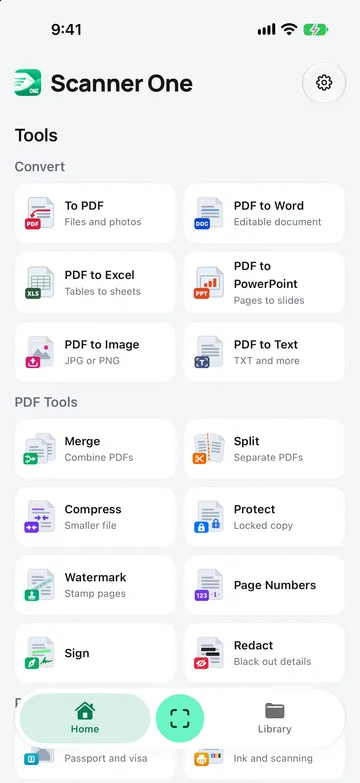
Nothing is cropped or cleaned. Each photo becomes a page 8.5 inches wide, the width of US Letter paper, and as tall as the photo’s shape: a portrait photo from the iPhone’s camera, 3 by 4, gives a page 8.5 by 11.3 inches. If you need every page at true Letter or A4 size to print, use the Review way above, after setting PDF Page Size in Settings to Letter or A4.
Both ways are free, with no limit: To PDF and saving a scan don’t count toward the 3 a week of PDF tools. On the free plan, the PDF you share carries a small “Scanned with Scanner One” mark at the bottom right of each page; Pro removes it.
If something goes wrong
- Crop says “Edges not found”. The page doesn’t stand out from what’s around it. Drag the corners yourself; next time, photograph paper on a darker surface.
- A non-paper photo looks washed out. Auto Clean treats everything as paper. Pick Photo, which keeps a picture’s own light, or Original.
- You have more than 30 photos. Save the first 30, open the document, tap Pages, then Add, then From Photos for the rest, and Done. Or use To PDF, which takes 100 at once.
- The pages are in the wrong order. Open the document’s Pages, touch and hold a page and drag it, then tap Done.

