To digitize handwritten notes, scan each page so you keep the page exactly as written, and let the iPhone read the writing so you can search it and copy it. Apple Notes does both for free. Scanner One turns a notebook into one PDF with the text inside it, kept and searched with the rest of your documents. Either way, set your expectations by the handwriting: neat, printed letters read well; hurried joined-up writing comes out with mistakes, or not at all.
The free way: Notes
- In Notes, open a note, tap the Attachment button, then Scan Documents.
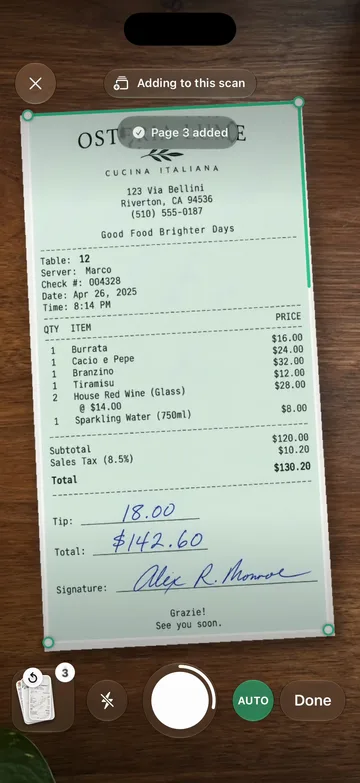
- Hold the iPhone over each page in turn; with Auto on, each is taken when it’s steady. Tap Done when you have them all.
- Search for a word later: Notes searches the text in scanned documents (Apple: search your notes).
For a line or two as typed text, point the Camera at the page and use Live Text, then copy. Even a photo of a page is findable: using Live Text, Spotlight can find text and handwriting in your photos (Apple Newsroom).
If you only need to find a page again, that’s enough. Scanner One helps when the notes should become a PDF you can send, file and search alongside your other papers, with the text you can copy or export.
Scan your notes with Scanner One
-
Scan the pages
Tap Scan Now and hold the phone over the first page. It’s taken once the outline settles, and opens in Review. For the next pages, swipe past the last page to Add pages and tap Scan more pages. AUTO takes each page once it holds still, but it waits for the page to move first, so if a notebook lying in one place isn’t taken after you turn the page, tap the shutter. Tap Done when you have them all.
-
Pick the look that reads best
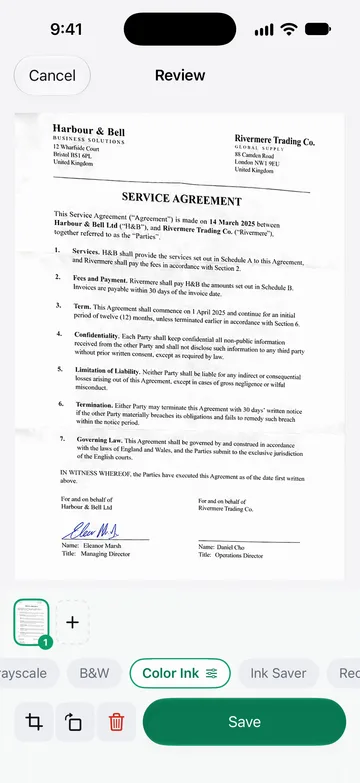
Scanner One reads the page as you see it in Review, so choose the look that makes the writing clearest. Auto Clean suits most notebook paper: it evens out the light and whitens the page. For faint pencil, try B&W, which keeps marks that are darker than the paper around them. For several pen colors, try Color Ink.
-
Save, then check the text
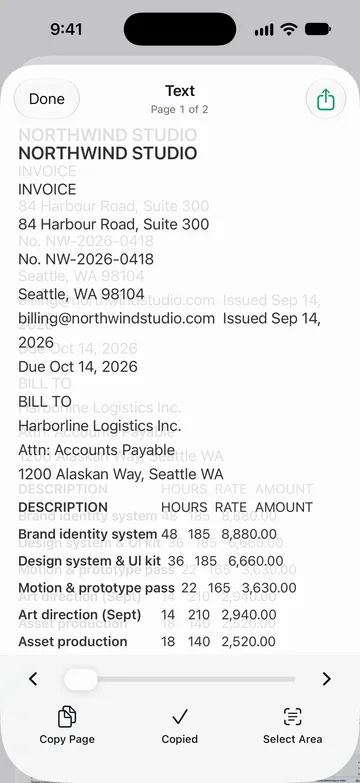
Tap Save (with several pages it says, for example, Save 4 Pages). Every page is read on your iPhone as it saves, with no connection needed. The document opens: tap Text to see exactly what was read, which is what search will find. The buttons at the bottom copy a page or all of it.
-
Find a page later
Type a word in the Library’s search. It looks inside every page of every document, and each result shows the line it was found on.
Two facing pages in one photo? Review may offer to split them into 2 pages, and to straighten lines that curve toward the spine: scanning a book without the curve shows how.
How well your handwriting will read
Scanner One reads pages with Apple’s own text recognition, on the iPhone, in its most accurate mode. It isn’t a separate handwriting reader, so the writing decides the result:
- Neat, printed handwriting reads well. On a neatly handwritten recipe card from the app’s sample pages, all 28 lines came back, with a couple of small slips such as “2ll” for “2lb”.
- Joined-up, slanted or crowded writing is where mistakes come in. In a test with typefaces made to look handwritten, most came back word for word, but an ornate, flowing script came back with “Mecting” for “Meeting” and “birtalay cand” for “birthday card”.
- The recognizer often doesn’t know when it’s wrong. Those misread lines were marked as sure as the right ones, so Scanner One keeps them. Check the text of anything that matters.
- Pure guesses are left out. A line the recognizer marks as a guess isn’t kept, and when it’s unsure of most of a page, Scanner One keeps no text for that page at all, rather than fill your search with nonsense.
Whatever happens to the text, the page itself is always saved as you wrote it. Before you scan a whole notebook, scan one page and tap Text.
Scanning and text recognition are free, with no limit. Sharing the text as a Text file is free; Word exports count toward the free plan’s PDF tools, 3 a week. On the free plan, PDFs you share carry a small “Scanned with Scanner One” mark in the corner; Pro removes it.
If something goes wrong
- The tile says Make Searchable after you save. Nothing on the pages was read surely enough to keep. Scan the page again, closer, flat and in even light, then check Text. If it still finds nothing, the writing is beyond the recognizer, and the pages stay saved as pictures.
- A page says Language not supported. Scanner One saw lines of writing on it that it couldn’t read. With handwriting, the cause is almost always the writing, not the language.
- Words come out wrong. Copy the text and correct it in Notes or Word; the scan keeps the original. To find the page again, search for a word that came out right.
- Pencil is too faint. Pick B&W in Review, or scan again with more light on the page and no shadow of the phone across it.

