To scan a whiteboard, stand square to it, get the whole board in the picture, and leave Scanner One on Auto Clean. When Auto Clean sees a board, it cleans it as one: the gray surface, the glare and the ghosts of old writing turn white, and the marker gets darker and stronger. The one thing no app can fix is glare that hid the writing completely, so it’s worth a step to the side before you shoot.
The free way
The Camera app makes a fine record of a meeting, and Scan Documents in Notes straightens the board like a page. Both keep the board’s gray and its reflections, so the writing is there but harder to read, and heavy on ink if you print it. If that’s all you need, you’re done.
Scan a whiteboard with Scanner One
-
Get the whole board in
Tap Scan Now and step back until the board and its frame fill most of the picture. The camera finds the board’s 4 edges like a page’s, and AUTO takes it when the outline holds still. Leave the flashlight off: on a glossy board it puts a bright spot in the middle.
-
Check Auto Clean
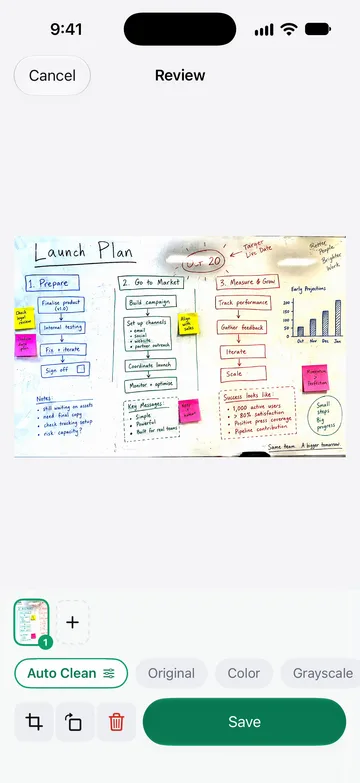
Review opens on Auto Clean. On a board, it turns anything close to the board’s own shade white (old ghost strokes, grid lines, the halo around glare) and darkens and deepens the marker, so light green and teal become readable. Tap Original to compare, then Auto Clean again.
-
Try B&W for a one-color board
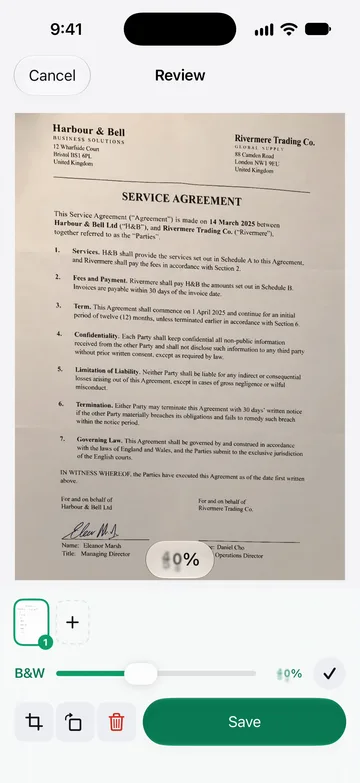
For a board written in one dark marker, B&W gives the cleanest copy: it keeps only marks clearly darker than the board around them. Tap the chosen filter again for its strength slider, and lower it if thin lines break up.
-
Save and share
Tap Save. The page keeps the board’s shape, so a wide board makes a wide page. Tap Share, then PDF, or JPG or PNG for a picture to drop into a chat or a slide.
How Auto Clean knows it’s a whiteboard
There’s no whiteboard mode to pick. Auto Clean looks at a small copy of every page and treats it as a board when the surface is light gray rather than paper white, smooth, with strokes that leave plenty of empty space, and when it also finds marker lines in 2 or more colors (red, green, blue or purple) or a glare spot. Everything else gets the regular document cleanup, which evens out the light too. So a board written in black only, with no glare, may be cleaned as paper: it still comes out readable, and B&W takes care of any ghosting left.
Shoot the board well
- Move the glare off the writing. Ceiling lights and windows reflect in the board. Step to one side until the bright patch is off the writing; Scanner One straightens the board, so you don’t have to stand dead center.
- Big board, small writing. Scan it in 2 halves as 2 pages with Scan more pages, so each half is shot from closer.
- No frame, or a glass board. If the camera can’t find the edges, Review says “Edges not found”. Tap Crop and drag the corners to the area you want.
Whiteboard cleaning is part of Auto Clean and free with every scan. On the free plan, the PDF or pictures you share carry a small “Scanned with Scanner One” mark; Pro removes it.
If something goes wrong
- Part of the writing is missing. It was under glare the camera recorded as pure white, and nothing can bring it back. Shoot again from the side.
- Ghost strokes still show. The board may not have been recognized as a board. Pick B&W.
- The colors look too strong. Tap Auto Clean again and lower the strength; 50% is halfway between the photo and the clean board.
- The page comes out tilted or cut off. In Review, tap the crop button: Crop opens on the whole photo, so you can drag a corner back out, or tap Auto Detect.

