You don’t need Word to turn a Word document into a PDF on iPhone. The Files app can do it through Print, and Apple’s free Pages app exports PDFs. Scanner One converts a Word file in one step, on the paper size and margins set in the file, and keeps the Word file with the PDF.
The free ways: Print, or Pages
From Files:
- Open the Word file in Files. From Mail, touch and hold the attachment, then Save to Files, and open it there.
- Tap the Share button, then Print.
- On the print screen, tap the Share button at the top, then Save to Files, or send the PDF straight from there.
The PDF is laid out on Print’s paper and margins, so pages can end in different places than in Word. For one short letter, that’s usually fine.
Pages, Apple’s free word processor, opens Word files too. Open the file in Pages, tap the More button, then Export, then PDF, and pick where it goes (Apple’s steps). Pages turns the file into a Pages document first, so fonts and spacing can shift a little.
Convert it with Scanner One
-
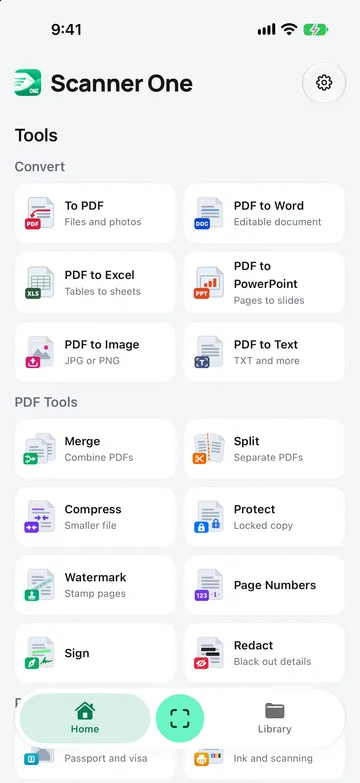
Tap To PDF
Scroll Home down to Tools and tap To PDF, then Files (“Documents and pictures”). Pick the Word file. You can pick several at once: each becomes its own PDF.
-
Share it or keep it
It converts at once. When “PDF ready” shows, tap Share to send it, Save to Library to keep it in Scanner One, or Save to Files for a folder of your own.
-
Open it like any document
A PDF you saved to your Library opens like any other document: Markup to sign it, Pages to reorder or delete pages, Share to send it as a PDF.
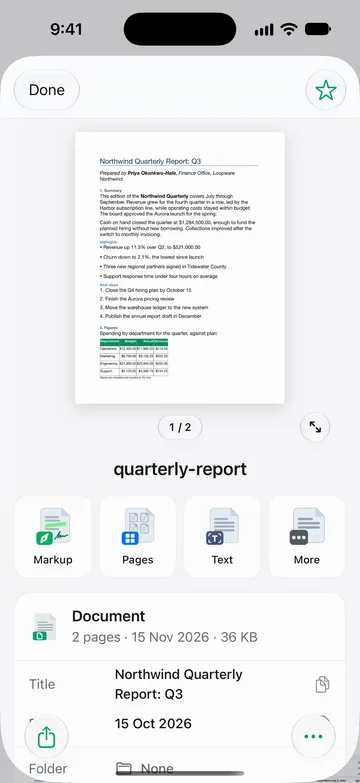
Tapping Files on Home and picking a Word file does the same in one go: it’s converted and saved straight to your Library.
What the PDF keeps
Scanner One draws the file with the converter iPhone uses to show Word files in Files and Mail, then prints it into a PDF page by page:
- Paper and margins: The ones set in the Word file, so a Letter document gives Letter pages and an A4 document A4 pages. An old .doc file doesn’t say, so its paper is worked out from how wide its text is laid out.
- Page breaks: A page break you put in with Word stays a page break. Other pages end where the text fills the paper.
- Real text: The words stay text, so the PDF can be searched, and the words selected and copied.
- The look: Headings, bold and italic, lists, tables and colors come through, as in the report above.
On the way, 3 things change:
- Fonts iPhone doesn’t have are swapped for close ones: Calibri, Aptos and Segoe UI become Helvetica Neue, Cambria and Garamond become Georgia, and Consolas becomes Menlo. Lines can then end a word or two away from where they ended in Word.
- A file that mixes paper sizes, or turns some pages sideways, comes out with every page on the paper of its last section.
- Nothing is loaded from the internet, so a picture the document only links to, rather than holds, doesn’t appear.
To PDF takes Excel, PowerPoint, Pages, Numbers, Keynote, RTF, plain text, Markdown and web pages the same way: a workbook prints sheet by sheet under each sheet’s name, and a deck becomes one page per slide.
The Word file stays with it
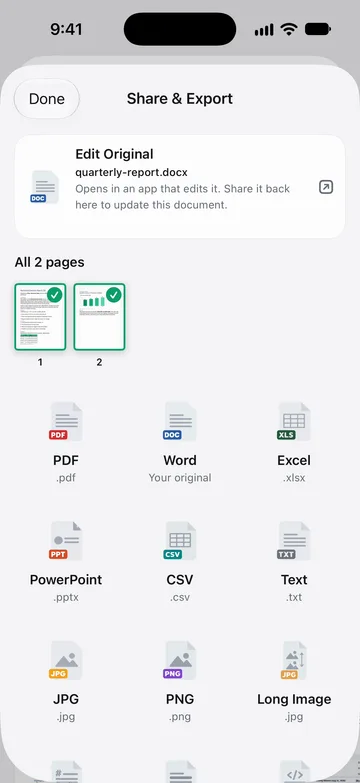
When you keep the PDF in your Library, Scanner One keeps the Word file exactly as it came in. In Share & Export, the Word tile says Your original and hands back that file, unchanged, and Edit Original opens it in an app that edits it.
To PDF and bringing files into Scanner One are free, with no limit, and so is the Your original Word file. On the free plan, a PDF you share carries a small “Scanned with Scanner One” mark at the bottom right of each page; the copy in your Library stays clean, and Pro removes the mark.
If something goes wrong
- It says the file “took too long to open”. Each file gets 25 seconds to open, and a very long or picture-heavy one can run out. Make the PDF in Word or Pages instead, or split the document and convert the parts.
- It says it “Couldn’t read this file.” The file is damaged, or isn’t really a Word file. Open it in Word or Pages to check it.
- The fonts look different. Scanner One uses the closest font iPhone has. When the PDF must look exactly like Word’s, make it in Microsoft Word.
- It asks “Update “Report”?” Your Library already has a document converted from a file with that name. Update replaces its pages with this version, with Undo; Import as New keeps both.

