iOS has no built-in way to scan from a printer, so you need an app that can talk to the printer’s scanner. The printer maker’s own app does it for its printers. Scanner One 1.2 can too, for printers that offer scanning over your Wi-Fi: open Printer Check, tap the printer, then Scan from This Printer. The pages open in Review like a camera scan and are saved as a searchable PDF.
The free ways
- The maker’s app. HP Smart, Canon PRINT, Epson Smart Panel and Brother Mobile Connect can each scan from their own printers to your phone.
- The printer’s own screen. Many all-in-ones can send a scan to an email address or a cloud folder without any phone at all.
- Your iPhone’s camera. For a letter or a receipt, a camera scan is quicker and sharp enough (what DPI a phone scan has). The glass is worth it for even light on photos and fine print, and the feeder for a stack.
Scan with Scanner One
-
Open Printer Check
On Home, scroll down to Tools and tap Printer Check (“Ink and scanning”). The first time, iOS asks whether Scanner One may find devices on your local network. Allow it: without it, Scanner One can’t see the printer.
-
Pick your printer
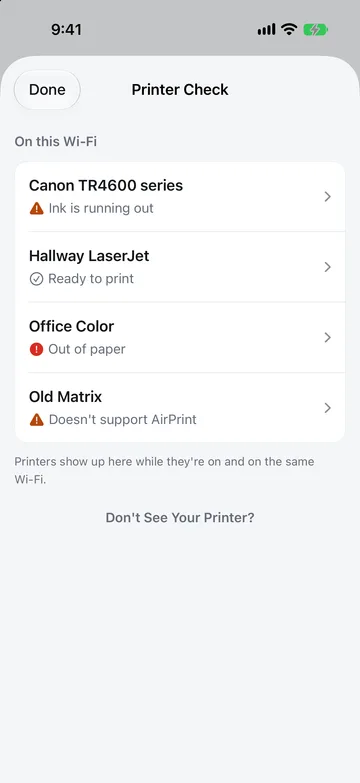
Printers on the same Wi-Fi are listed under On this Wi-Fi, each with its status. Tap yours. If it can scan over the network, its screen has Scan from This Printer at the bottom; tap it, and Scanner One asks the scanner what it can do.
-
Choose the options
The Scan from Printer screen shows a choice only where the scanner offers more than one. Where picks the Glass or the Feeder; if there are pages in the feeder already, it starts there. Color picks Color or Gray. Paper sets the size, A4, Letter or Legal, from the ones the scanner takes. Put the page face down on the glass, or the stack in the feeder, and tap Scan.
-
Review and save
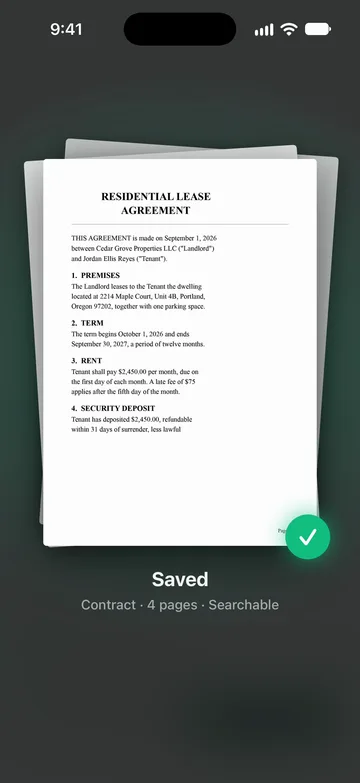
The screen says Scanning page 1… and counts up, and stays awake while it works. Then Printer Check closes and the pages open in Review. Pick a filter, crop if you need to, and save (the button counts the pages, as in Save 4 Pages). Each page is read for its text as it saves, so you can search it like any other scan.
What it supports, and what it can’t do
- Printers on your Wi-Fi that scan over the network. Scanner One uses eSCL, a standard way to scan over a network that many AirPrint all-in-ones also speak. It finds printers by the announcements they make on your Wi-Fi, so a printer on USB or Bluetooth, or on another network, won’t show up.
- 300 dpi. Scanner One asks for 300 dpi, or the closest the scanner offers, in JPEG. A Letter page arrives at 2,550 × 3,300 pixels, against about 200 dpi for a phone photo of the same page.
- A full sheet every time. The scanner sends the whole paper size you picked, so a receipt or a card on the glass comes with white around it. In Review, tap the crop button, then Auto Detect (or drag the corners onto the paper), and Done.
- One page from the glass. Each glass scan is one page and opens on its own. For several pages, use the feeder, or save each page and join them with Merge (merge PDFs on iPhone). Review holds up to 30 pages, so feed 30 sheets or fewer at a time.
- One side. There’s no two-sided option: the feeder scans one side of each sheet.
- Nothing changed, nothing sent. Scanner One doesn’t change the printer’s settings, install drivers or put a printer on Wi-Fi, and the pages go straight from the printer to your iPhone.
Scanning from a printer is new in Scanner One 1.2. It has been tested with a test scanner and with a Canon inkjet all-in-one. Other makers’ scanners speak the same standard, but each answers in its own way, so if yours won’t scan, its maker’s app is the fallback.
Printer Check and scanning from a printer are free. Merge is one of the PDF tools, free 3 a week. On the free plan, PDFs you share carry a small “Scanned with Scanner One” mark in the corner; Pro removes it.
If something goes wrong
- “Scanner One can’t look for printers yet”. Local Network is off for Scanner One. Tap Open Settings and turn it on.
- No Scan from This Printer button. The printer didn’t announce a scanner on the network: it may not offer network scanning, or it’s asleep. Wake it and give Printer Check a moment to hear from it, or use the maker’s app.
- The scanner is busy, the feeder is empty, or paper is stuck. Scanner One says which, in a sentence: wait, fill the feeder or clear the jam, then tap Try Again. If a stack stopped part way, the pages that arrived are kept: tap Review 3 Pages (with the number that arrived) to keep them.
- A page comes in cut short or nearly blank. Scan it again. If it keeps happening, turn the printer off and on, or use the maker’s app.

