When an iPhone won’t print, the cause is usually one of four things: the printer doesn’t support AirPrint, it’s on a different Wi-Fi, it’s asleep, or it’s out of ink or paper or jammed. Check those first, and clear any stuck job in Print Center. Scanner One’s free Printer Check then shows what each printer on your Wi-Fi says about itself, its ink levels and any error, with the steps to try. It can’t repair a printer or change its settings.
First checks
- Make sure the printer supports AirPrint: its box, manual or maker’s website says so. AirPrint needs the printer on Wi-Fi or a wired network (Apple: use AirPrint).
- Put your iPhone on the same Wi-Fi network as the printer. A guest network often keeps devices apart.
- Clear a stuck job: open the App Switcher, tap Print Center, select the job, and tap Cancel Printing (Apple: print from iPhone).
- Turn the printer off and on, then try again.
If the printer still doesn’t appear when you tap Print, or prints nothing, find out what it’s saying.
Check the printer with Scanner One
-
Open Printer Check
On Home, scroll down to Tools and tap Printer Check. From a document, it’s also under Print in Share & Export: Printer not showing? The first time, iOS asks whether Scanner One may find devices on your local network. Allow it, or Scanner One can’t see the printer.
-
Read the list
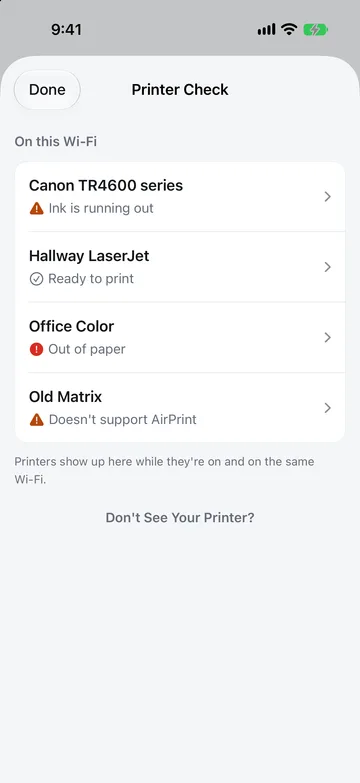
Every printer on your Wi-Fi gets one line: Ready to print, Printing now, or its most serious problem, such as Out of paper or Ink is running out. A printer marked Doesn’t support AirPrint can’t take your iPhone’s own printing: print to it with its maker’s app.
-
Open the printer
Tap a printer. Its screen shows each ink or toner as the printer reports it, then What to do: the steps for its problem, such as clearing a jam in the direction the paper feeds. Fix it, then pull down on the screen, or tap the round arrow at the top, to ask the printer again.
-
Print a test page
Print Test Page opens your iPhone’s print sheet with a one-page test. Pick the printer there and print. Open Printer’s Page opens the printer’s own web page, when it has one.
What Printer Check reads
Printer Check asks each printer for 8 things and nothing else: its state, the reasons it gives, its message, its make and model, and the name, kind, level and low mark of each ink. It asks for no serial numbers, addresses or job lists, never changes a setting, and nothing it reads leaves your network.
- The problems it names. Offline, a paper jam, no paper, an open cover, a missing tray, an empty cartridge, a full waste container or output tray, and paused or stopped printing. Early warnings: ink or toner running out, paper running low, a waste container nearly full. Anything else is shown in the printer’s own words, after “The printer says:”.
- Ink as reported. Levels show as percentages. A level the printer doesn’t know shows Not reported, never as empty. Scanner One says Ink is empty only when the printer itself says so: a cartridge at 0% that the printer only calls low shows as Ink is running out.
- A test page that tells you something. It prints the 4 inks (black, cyan, magenta, yellow) as bars that fade from solid, 24 fine lines and text down to 5 points. A missing or streaky bar points to that cartridge; broken lines mean the print head needs the printer’s cleaning cycle.
Printer Check is new in Scanner One 1.2. It was tested with test printers and a Canon inkjet. Laser printers and other makers report through the same standard, but some say less, and some report no ink levels at all.
Printer Check is free, test page included. On the free plan, the documents you print from Scanner One carry a small “Scanned with Scanner One” mark in the corner; Pro removes it.
If something goes wrong
- “No printers found on this Wi-Fi”. Printer Check says so after about 6 seconds and keeps looking. Wake the printer, check it’s on the same Wi-Fi and not a guest network, restart the printer and then the router, and tap Search Again.
- “Scanner One can’t look for printers yet”. Local Network is off for Scanner One. Tap Open Settings and turn it on. Printing doesn’t need it: Print in Share & Export still works.
- “Can’t read its status”. The printer didn’t answer in time, often because it’s asleep. Wake it and check again. Print may work all the same.
- “This printer doesn’t report ink levels.” The printer keeps them to itself. Look at its own screen, or its maker’s app.

