iPhone translates documents for free. Point the Translate app’s camera at a page and the translation appears over the text; in a PDF, select the words and tap Translate. Scanner One uses the same Apple translation. What it adds is the text: it has already read your scan, so its Translate hands over the whole document at once when it’s short, instead of you going page by page with the camera.
The free ways
For a paper in front of you, use the Translate app:
- Open Translate, tap Camera, then choose the language to translate into.
- Point the camera at the page. The translation appears over the text as you move.
- Tap the shutter button to hold the view, then tap a translation and Copy Translation to keep it (Apple’s steps).
For a PDF, an email or a web page, select the text, then tap Translate; if it isn’t in the menu, tap the arrow at the end. Choose the language, and under the translation, Copy Translation copies it. In Photos, open a picture of a page, tap the text button in its corner, touch and hold the text, and tap Translate (Apple’s steps).
Under a translation, Download Languages lets it work without a connection. For one page, this is all you need. A letter of several pages means repeating it page by page, and the camera keeps nothing for later.
Translate a scan with Scanner One
-
Scan it or bring it in
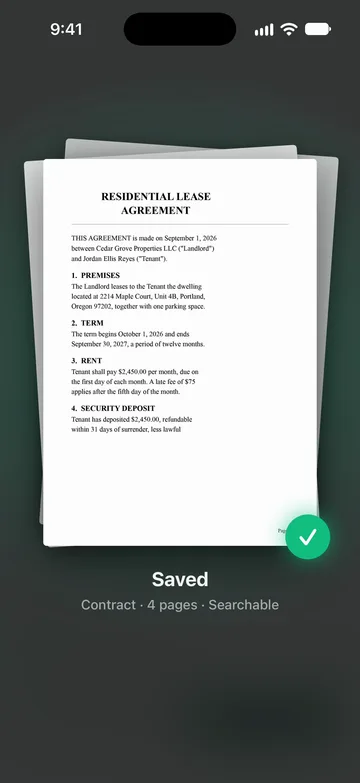
Tap Scan Now on Home, photograph each page, and tap Save. Scanner One reads every page as it saves, in any of 29 languages, on the phone. A PDF or a photo you already have: tap Files or Photos on Home.
-
Tap More, then Translate
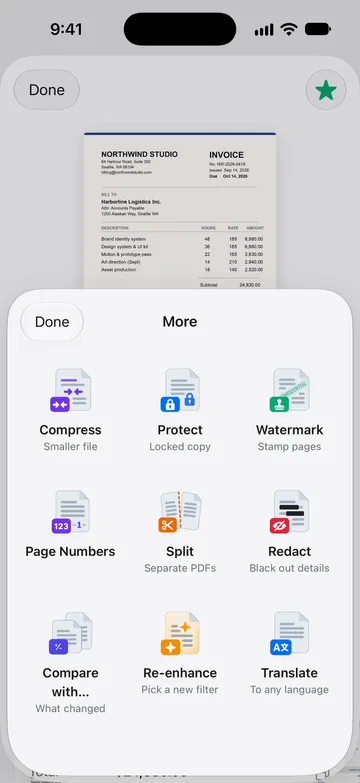
Open the document, tap More, then Translate. It’s there on iOS 18 or later, once the document has text.
-
Choose the language and copy
Apple’s translation sheet opens with the document’s text. Choose the language to translate into, then Copy Translation and paste it into Notes, Mail or your reply.
How much goes in: the whole document’s text when it’s 4,000 characters or less, which usually covers a short letter or a one-page form. A longer document sends the page on screen: swipe to the next page on the document screen, then tap More and Translate again.
For one page or one part of it, tap Text. The share button at its top right has Translate This Page (Translate on a one-page document), and you can select any words and tap Translate in the menu.
What it doesn’t do
- It doesn’t make a translated PDF. You get the translation as text to copy, without the page’s layout, and Scanner One doesn’t save it with the document.
- The languages are Apple’s: the ones the Translate app offers. Scanner One may read a page in a language Apple can’t translate.
- A translation is only as good as the text read from the page. A blurred or curled scan gives wrong words before translation starts, so check the Text screen when something reads oddly.
Translate is free, with no limit, and so is reading the text. Scanner One hands the text to iPhone’s own translation and doesn’t send it anywhere itself. Languages you’ve downloaded translate without a connection; Apple lists them in Settings, under Apps, then Translate, then Downloaded Languages.
If something goes wrong
- There’s no Translate in More. It needs iOS 18 or later, and text: if the document shows Make Searchable where Text usually is, tap it first.
- Only one page was translated. The document has more than 4,000 characters of text, so the page on screen went. Go to the next page and tap Translate again, or use Translate This Page on the Text screen.
- Parts of the translation make no sense. The words were misread. Open Text to check them, and scan the page again flat, in good light.
- Your language isn’t in the list. Apple’s translation covers a set list of languages, and others can’t be picked.

