Your iPhone can read a PDF aloud for free: turn on Speak Screen once, open the PDF, and swipe down from the top of the screen with two fingers. It needs real text in the file, though, and a scanned PDF is often only a picture of each page. Scanner One’s Listen reads PDFs and scans alike, starts on the page you’re looking at, and highlights each sentence as it’s spoken.
The free way: Speak Screen
- Open Settings, tap Accessibility, then Read & Speak (called Spoken Content on iOS 18 and earlier), and turn on Speak Screen.
- Open the PDF in Files or Books.
- Swipe down with two fingers from the top of the screen. The controller that appears pauses the reading, changes its speed and skips ahead (Apple’s steps).
For one paragraph, turn on Speak Selection in the same place, select the text and tap Speak.
That’s enough for a PDF that has text in it. A scan that’s only a picture of each page may have nothing for Speak Screen to read.
Listen in Scanner One
-
Open the document
Any scan in your Library will do: Scanner One read its text when you saved it. For a PDF from email or the web, save it to Files, then tap Files on Home and pick it.
-
Open the Reader
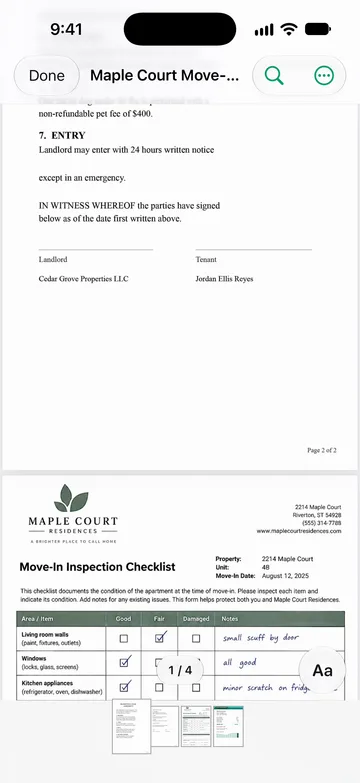
On the document’s screen, tap the page. The Reader opens; scroll to the page you want to start from.
-
Tap Listen
Tap the More button (three dots) at the top right, then Listen. Scanner One reads from the page on screen to the end, a sentence at a time, and highlights the sentence being read. It keeps that sentence in view, unless you scroll away to read something else.
-
Use the player
A bar stays at the bottom while it reads. On its left is the speed: 0.8×, 1×, 1.25× or 1.5×, and Scanner One remembers the one you pick. In the middle are back a sentence, play or pause, and forward a sentence. The cross on the right stops listening. To start again elsewhere, scroll there and tap Listen again.
How Listen reads
- Sentences, not lines. In a PDF with text, lines that wrap on the page are joined back up before reading, so a sentence isn’t broken at every line end.
- Scans by their layout. A scan is read from the text Scanner One recognized. On iOS 26 that text follows the page’s layout, its title, paragraphs, lists and tables; before iOS 26, a page in 2 columns is read straight across.
- A voice for the language. Scanner One works out each document’s language and picks the best voice on your iPhone for it, so a French letter is read in French. A voice you’ve downloaded in higher quality (in Settings, Accessibility, then Read & Speak, then Voices) is chosen first.
- Speeds that match their labels. Each speed was measured with Apple’s standard voices: 1.5× really is about half again as fast as 1×.
- Only while you’re in the Reader. Reading pauses when you leave Scanner One, lock the iPhone, take a call or unplug your headphones, and picks up from the same word when you tap play. Closing the Reader stops it. It doesn’t play in the background.
Listen is free, with no limit, for every document. The voices are your iPhone’s own, so it works without a connection.
If something goes wrong
- “Make it searchable first”. The scan has no text, for example because nothing on it could be read when it was saved. Close the Reader and tap Make Searchable on the document’s screen; if it finds text, tap Listen again.
- “No text to read”. The PDF has no text in it, as with a long scanned PDF you imported. Tap Make Searchable on the document’s screen, then try again.
- The voice is in the wrong language. On a page with little text, or two languages mixed, Scanner One may not be sure which language it is, and uses the iPhone’s own language. Check that a voice for the document’s language is installed under Voices.
- It stops when the screen turns off. Reading only goes on while the Reader is open and on screen. For a long document, set Auto-Lock to a longer time in Settings, under Display & Brightness.

