Your iPhone’s camera can’t scan a code that’s on its own screen, but it can read one in a screenshot. Open the screenshot in Photos, tap the Live Text button, then tap the code. Scanner One does it for every code in a picture or a PDF at once: it lists each QR code and barcode it finds, with the link, the Wi-Fi password or the contact ready to use, and keeps them with the document.
The free way: Photos
- Open the screenshot in Photos.
- Tap the Live Text button in the corner of the photo. The code is highlighted.
- Tap the code to see where it leads, then open it.
If there’s no Live Text button, open Settings, tap General, then Language & Region, and turn on Live Text.
That’s all you need for a link you’ll use once. Scanner One is worth it when a screenshot or PDF holds several codes, or when you’ll want the code again later: a ticket, a menu, a Wi-Fi card.
Read the codes with Scanner One
-
Import the screenshot
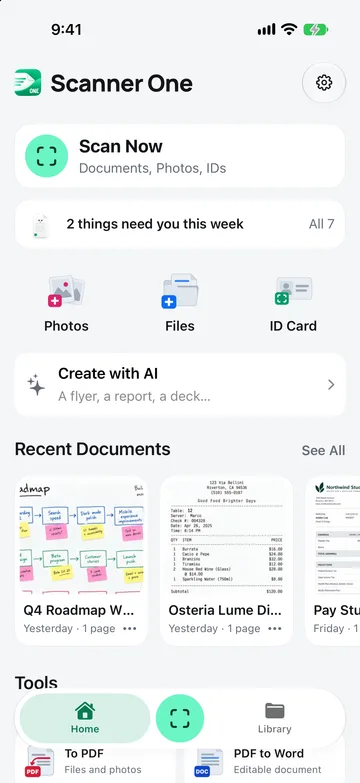
On Home, tap Photos and pick the screenshot. A screenshot saved in Files, or a PDF such as an event ticket, comes in through Files instead.
-
Save it
Review opens on the whole picture. There’s no paper to clean in a screenshot, so you can tap Original to keep it exactly as it is. Tap Save. A PDF that has text in it skips Review and goes straight into your Library.
-
Use the codes
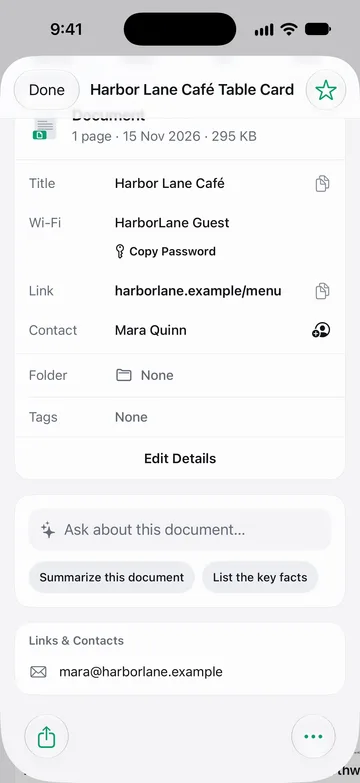
The document opens. Scroll down past the tiles to its card: a moment after the save, each code has its own row, in the order it sits on the page. Link shows the address; tap it to open it in Safari. Wi-Fi shows the network’s name with Copy Password under it. Contact has a button with a person and a plus that opens a new contact, filled in. Email and Phone start an email or a call. Striped barcodes show as Barcode, and any other code as Text. The copy button beside a row copies what the code holds.
-
Find it again
Codes count as the document’s details in the Library’s search. Type a word from the link, or the Wi-Fi network’s name, and the document comes up. The password inside a Wi-Fi code is never added to search.
What Scanner One reads, and what it won’t open
- Every page. Codes are read on every page of a scan or an imported PDF, in the background after the save. A code printed on every page, like a footer, is listed once. When there are more than 5, the card shows 4 and a row such as Show 3 More, so a page of barcodes can’t bury it.
- The kinds of code. QR codes and other two-dimensional codes (Aztec, PDF417, Data Matrix), and striped barcodes such as the EAN and UPC numbers on products. A boarding pass or a ticket usually holds data meant for the scanner at the gate or the door, so it shows as Text.
- The picture it reads. Scanner One looks for codes in the saved page, at up to 2,400 pixels on its long side. An iPhone screenshot is about 2,600 pixels tall, so it’s read at nearly full size, and a code that’s clear on your screen is normally big enough.
- Nothing opens by itself. A row opens only when you tap it. Apart from email addresses and phone numbers, only web addresses open; a code that points into another app shows as Text for you to copy.
Scammers use codes because you can’t read where one leads until something decodes it. The FTC’s advice for a code you didn’t expect: inspect the address before you open it, and look for misspellings or a switched letter (FTC consumer alert). In Scanner One, the Link row shows the address before you open anything.
Reading QR codes and barcodes is free, on every page you scan or import, with no limit.
If something goes wrong
- No codes are listed. The rows appear a few seconds after the save, so give it a moment. If none come, the code may be cut off at the picture’s edge, or blurred, as in a screenshot of a photo of a screen. Take the screenshot again with the whole code in it, or import the original image.
- The address doesn’t open. Only web addresses, email addresses and phone numbers open from Scanner One. Anything else shows as Text: tap the copy button and paste it where it belongs.
- You want to join the Wi-Fi network. Scanner One doesn’t join networks. Tap Copy Password, then in Settings, under Wi-Fi, pick the network and paste the password.
- The Wi-Fi row says Open network. The network has no password. Join it in Settings, under Wi-Fi.

