iPhone has no built-in way to turn a PDF into a spreadsheet. Scanner One does it on the phone: on iOS 26 it finds each table on the pages and puts it on a sheet of its own in an Excel workbook, with amounts stored as numbers you can add up. On iOS 17 and 18 it can’t look for tables, so the workbook holds only the details it found on the document, such as a total and a date.
The free way: copy the table
In Files or Preview you can select a table’s text, copy it and paste it into Numbers or Excel, but each line usually lands in a single cell, and you split the columns yourself.
Scanner One’s copy is free too, and better at tables. Open the document, tap Text, then Copy Page (Copy on a one-page document). On iOS 26 a scan’s tables are copied with a tab between cells and a line for each row, so they paste into Numbers or Excel as columns. Copying doesn’t count toward any limit, and for one table it’s often all you need.
Export to Excel in Scanner One
-
Tap PDF to Excel
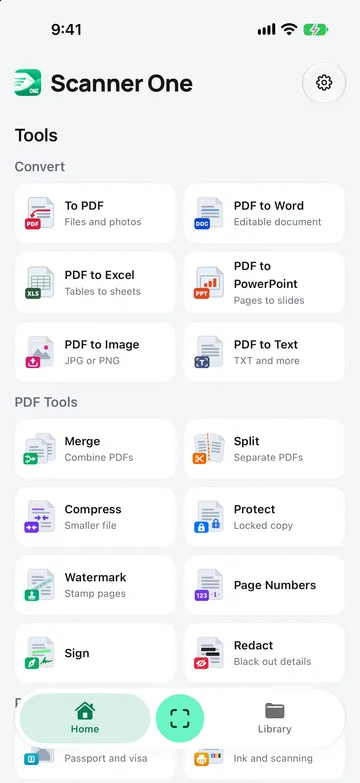
Scroll Home down to Tools, tap PDF to Excel and pick the document. A PDF from email or Files comes in first through Files on Home; a table on paper, scan it with Scan Now. From a document you have open, tap Share, untick any pages you don’t need in the row at the top, then tap Excel.
-
Choose Excel or CSV
Excel makes one .xlsx workbook. CSV makes one .csv file for each sheet, for apps that don’t open Excel files. From Home’s Tools, for a document of several pages, keep all of them or tap Choose Pages and set the first and last page. Tap Export to Excel, or Export as CSV.
-
Share or save the workbook
“Looking for tables…” shows while Scanner One reads the pages, then “Excel workbook ready” and the file’s size. Tap Share to send it or open it in Excel or Numbers, or Save to Files to keep it in iCloud Drive or another folder.
How the tables are found
On iOS 26, Apple’s document reader looks at a picture of each page and works out where every table’s rows and columns are. Then:
- On a scan, Scanner One fills each cell with the words its own text recognition read when you saved the page, which are more exact than the reader’s. The screen at the top of this page is that reading: the Text screen shows a scan’s tables the way they’ll come out.
- On a PDF, even one with its own text, the words in the cells come from the reader too, read off a picture of the page about 1,600 pixels on its long side. Check the figures that matter against the PDF.
What the workbook holds:
- Details: when Scanner One found details on the document, the first sheet lists them under Field and Value: the total, the tax, the date, an invoice number.
- One sheet per table: Table 1, Table 2 and on, in page order. A table that runs onto the next page becomes 2 sheets.
- A header that stays put: the first row of each sheet is bold and stays in view as you scroll. Columns are as wide as their text, up to about 60 characters, then the text wraps.
- Clean cells: a merged cell’s text goes in its first cell, and rows and columns with nothing in them are dropped.
Numbers stay numbers
Amounts are stored as numbers, shown the way the page printed them. A dollar amount of 1,250.00 becomes the number 1250 in a dollar format, (45.00) and 45.00- become −45, and 12% becomes 0.12 shown as a percentage. So a SUM over a column works right away.
Some figures are codes, not amounts, and stay as text: whole numbers with a leading zero, like the ZIP code 02134, numbers of 12 digits or more written without commas, like an account number, and dates. A number with one comma or point and 3 digits after it, like 1,250, could be either; it’s read the way your iPhone’s region writes numbers.
Excel and CSV exports share one count with the PDF tools and the Word and PowerPoint exports: free accounts get 3 a week, and Share & Export shows what’s left, such as “Office · 2 left this week”. Pro removes the limit. Excel and CSV files never carry the “Scanned with Scanner One” mark that a free account’s PDFs and pictures do. Copying from the Text screen is free.
If something goes wrong
- It says “No tables or details found”. Scanner One found no table and no details. On iOS 17 and 18 it can’t look for tables at all. Copy the table from the Text screen instead, or scan the page again flat, upright and in good light.
- There’s no Excel tile in Share & Export. On iOS 17 and 18 it only shows for documents with details found. Use Text and Copy Page.
- 1.250 became 1.25. A number with one point or comma and 3 digits after it is read your iPhone’s way, so on a US iPhone a European invoice’s 1.250, meaning 1,250, comes out as 1.25. Fix those cells in Excel. Amounts with both marks, like 1.250,00, are read right whatever the region.
- A figure is wrong or stayed as text. A misread character, like the letter O for a zero, keeps the cell from being a number. Correct it in the sheet; for a scan, a sharper photo reads better next time.

