Yes. You can scan a notarized document to keep it or to send it, and a good scan shows everything on the paper: the text, the signatures, the notary’s certificate and seal. But the notarization belongs to the paper. The notary signed and sealed that original, so a scan or a photocopy is a copy of a notarized document, not a notarized document. Whether a copy is good enough is up to whoever asked for the paper: some take a scan by email, while a court, a county recorder, a bank or a government office may want the original. Ask them before you send anything. This is general information, not legal advice; the rules vary by state and by country.
When a copy won’t do
A copy doesn’t become an original by being notarized either. The Social Security Administration, for one, says: “You must present original documents or copies certified by the agency that issued them. We cannot accept photocopies or notarized copies.”
If the receiver needs a notarized original and you can’t mail paper, ask whether they accept remote online notarization, which many US states now allow. You sign on a video call with a notary, and the notarized original is itself a digital file, so there’s nothing to scan. Each state sets its own rules for notaries, usually through the Secretary of State.
Scan it so nothing is lost
Notes and the Preview app scan documents for free and can make this copy too. These are the steps in Scanner One, whose Color Ink filter keeps colored stamps and signatures in color.
-
Scan every page
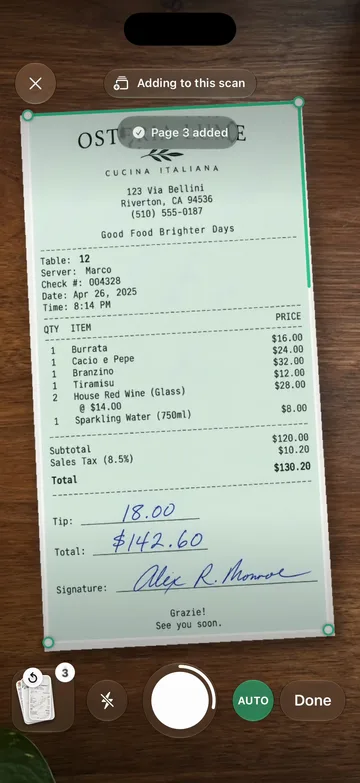
Tap Scan Now and shoot the first page. In Review, swipe past it to Add pages, tap Scan more pages, and the camera takes each page as you turn them. Include the notary’s certificate, often on the last page or a sheet of its own, and leave any staple in: a phone scans a stapled set page by page.
-
Keep the stamp and signatures
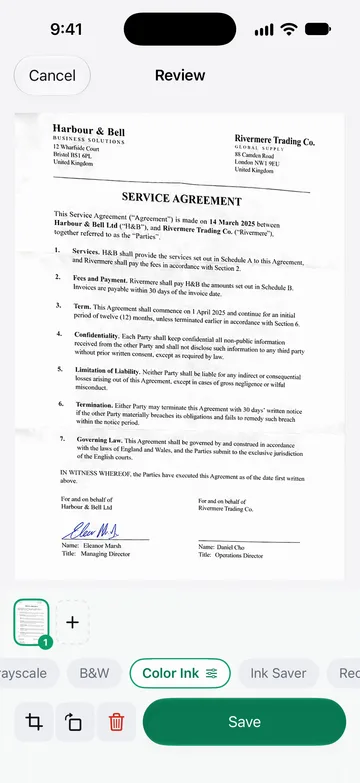
Pick Color Ink: the paper turns white and the print gray, while colored ink, such as a stamp or a signature in blue, stays in color. A seal pressed into the paper without ink shows only as light and shadow, which the filters that whiten paper can wash out; pick Original for that page. Press and hold the page to see it without the filter, then tap Save.
-
Check the page order
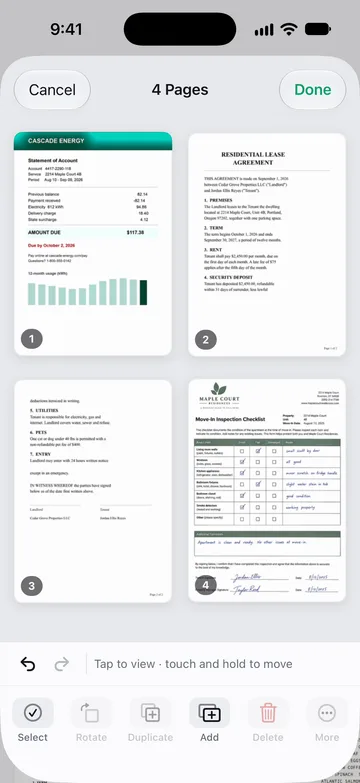
On the document, tap Pages. Touch and hold a page to move it, and tap Done.
-
Send it as a PDF
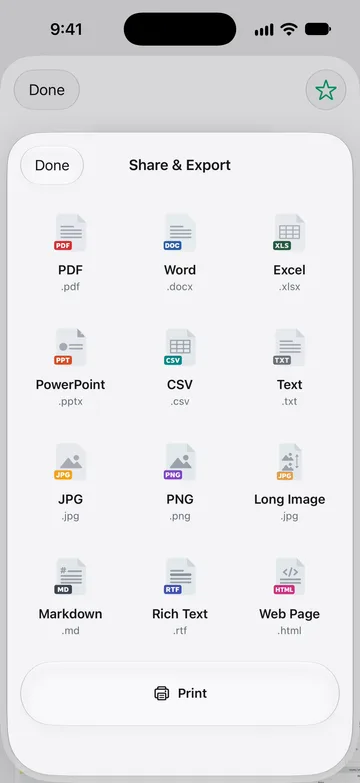
Tap Share, then PDF. Keep the paper original somewhere safe: the scan is your record of it, not a replacement.
Don’t write on the scan. A copy you’ve highlighted, signed or cleaned up is no longer a faithful copy of what the notary saw.
Scanning, saving and sharing PDFs are free, with no limit. On the free plan, pages you share carry a small “Scanned with Scanner One” mark in the corner of each page; Pro removes it.
If something goes wrong
- The seal doesn’t show. It’s probably pressed into the paper, not inked. Pick Original, and light the page from one side so the seal casts a shadow.
- You left out a page. Open the document, tap Pages, then Add and Scan with Camera. Move the new page into place and tap Done.
- An edge is cut off. In Review, tap the crop button and drag the corner out: Review crops from the whole photo, so the missing edge comes back.
- The receiver won’t take a copy. That’s their rule, not your scan’s quality. Send the paper original, or ask about remote online notarization.

