Yes. You can scan a birth certificate with your iPhone, and a clear scan is fine for your own records and usually fine when someone only needs to see the details, such as a school or a club. A scan doesn’t replace the certificate, though. When an office has to check that the certificate is genuine, as for a US passport or a Social Security card, it wants the certified copy issued by the vital records office, and a scan, a photocopy or a notarized copy won’t do instead. The rules belong to whoever asked for the document and they vary, so check with them; this is general information, not legal advice.
What the offices say
- US passports. The State Department asks for your birth certificate itself, with the seal or stamp of the office that issued it, and a photocopy of the front (and of the back, if it has printing on it). The photocopy must be “clear and easy to read”, printed on white 8.5 × 11 inch paper, single sided. It also says: “You cannot submit electronic copies of birth certificates.”
- Social Security. The Social Security Administration says: “You must present original documents or copies certified by the agency that issued them. We cannot accept photocopies or notarized copies.”
- UK passports. GOV.UK says: “You must send original documents. Photocopies are not accepted.” Without your original, you need an official copy.
A certified copy comes from the vital records office of the US state where you were born; the CDC lists them all in Where to Write for Vital Records. In England and Wales, you order one from the General Register Office or the local register office (GOV.UK).
Scan it with Scanner One
A scan is still worth having: a record if the paper is lost, a copy to send where one is accepted, and a clear print when an application asks for a copy beside the certificate. Notes and the Preview app scan documents for free; Scanner One adds a filter that keeps stamps and signatures in color, a lock on the app, and a password on the copy you send.
-
Lay it flat and scan it
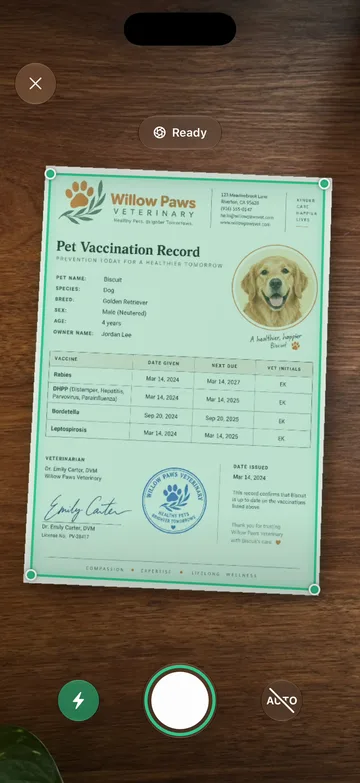
Flatten the folds and lay the certificate on a darker surface. Tap Scan Now and hold the phone square over it until the corners lock. If the back has printing on it, swipe past the page in Review to Add pages, tap Scan more pages, and shoot the back too.
-
Keep the seal and signatures
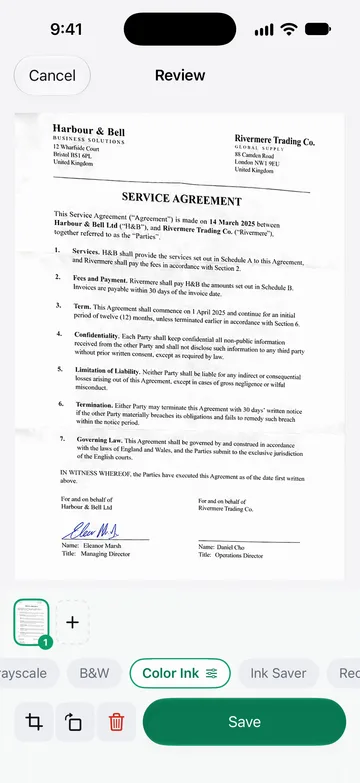
Pick Color Ink: the paper turns white and the print gray, while colored ink, such as a stamp or a signature, stays in color. A raised seal pressed into the paper has no ink at all; for that page, Original keeps the light and shadow that show it. Tap Save.
-
Keep it private
Scanner One keeps documents on your iPhone unless you share them or turn on iCloud Sync. In Settings, Lock with Face ID (or Touch ID) keeps the app closed to anyone who picks up your phone.
-
Print the copy, or send it locked
For the copy that goes with a passport application, tap Share, then Print: on plain white Letter paper, single-sided, as the State Department describes it. To email a copy, tap More, then Protect, and Lock a Copy with a password; send the password separately.
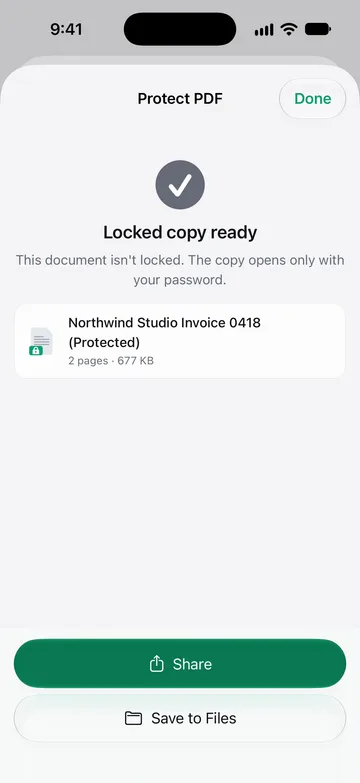
Scanning, saving and printing are free. Protect is one of the PDF tools: free for 3 a week, shared with the others. On the free plan, pages you share or print carry a small “Scanned with Scanner One” mark in the corner of each page; Pro removes it.
If something goes wrong
- The seal doesn’t show. It’s probably pressed into the paper, not inked. Pick Original, and light the page from one side so the seal casts a shadow.
- An edge is cut off. In Review, tap the crop button and drag the corner out: Review crops from the whole photo, so the missing edge comes back.
- The words are too small to read. Hold the phone closer, so the certificate fills more of the screen, and shoot again in good light.
- The office won’t take your copy. That’s its rule, not your scan’s quality. Order a certified copy from the office that issued the certificate.

