The photo page, also called the data page, is the one with your photo, name, passport number and dates. To scan it, open the passport flat, photograph that page only, and save it as a PDF. Scanner One’s ID Card scan has a Passport tab for exactly this: it lays the page out at its real size, 125 × 88 mm, so a printed copy matches the passport, and it reads the expiry date for you.
The free way
Scan Documents in Notes or Files works on a passport too: open it flat, scan, and drag the corners in to the photo page if the scanner took both pages. For an upload, that’s usually enough. The US Department of State suggests keeping copies of your travel documents: one set with someone at home, one set with you but apart from the originals, and photos on your phone (International travel checklist).
Scan it with Scanner One
-
Open the Passport tab
On Home, tap ID Card, then Passport at the top of the screen.
-
Scan the photo page
Tap Scan Photo Page. The camera says “Passport photo page, open flat”. Hold the passport open with your fingers on the opposite page, not on the photo page, and keep the 2 lines of letters at the bottom of the page inside the outline.
-
Choose the size and save
Actual keeps the page at real size. Large and Fit make it bigger (on Letter paper, 125% and 152%), and the line under the page gives the percentage. Tap Save Passport.
-
Send or print it
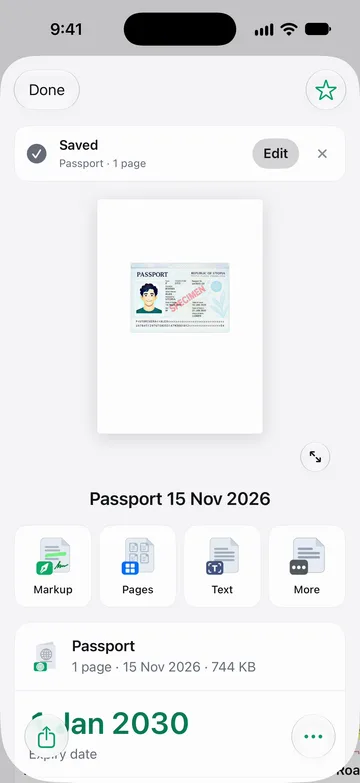
The passport opens as a 1-page document named “Passport” with the date. Tap Share, then PDF to send it; Print is in the same sheet.
-
Get reminded before it expires
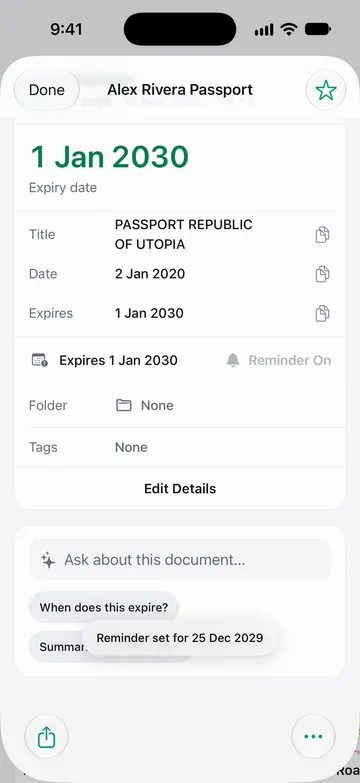
Scroll to the info card: the expiry date read from the page is at the top, and the expiry row has Remind Me. Tap it, and Scanner One sends a notification at 9:00 a week before that date.
A week’s notice is too late for travel
The reminder comes 7 days before the date printed in the passport, and travel needs more warning than that. The Department of State says some countries, especially in Europe, require your passport to be valid for at least 6 more months after your travel dates, and to apply early for a new one (International travel checklist). Needs You on Home keeps the passport in its list with the expiry date, and flags it from 180 days before.
A copy is not the passport
Whoever asks for the copy decides what they accept: an employer, a bank, a consulate. Check what they need (color, paper or a file, the whole page down to the 2 lines of letters and chevrons at the bottom) before you send it. A copy never replaces the passport when you travel.
Scanning the passport is free. Reading its expiry date and number counts toward smart filing, free for 10 documents a month. On the free plan, a copy you share or print carries a small “Scanned with Scanner One” mark in its corner; Pro removes it.
If something goes wrong
- The copy is smaller than the passport, or sideways. The outline took in both pages of the open passport, and the whole spread was fitted into the photo page’s space. Tap the page in the preview, choose Adjust Crop, drag the corners to the photo page only, and tap Done.
- Glare on the photo or the hologram. The photo page is laminated. Switch off the flashlight and tilt the passport until the reflection of the lamp or window is off it; the page is straightened anyway, so you don’t need to be exactly above it.
- No expiry date on the info card. Either this month’s free smart filing is used up, or the date couldn’t be read because of glare, blur or a cut-off edge. Scan the page again with the dates sharp and free of glare.
- “Too late for a reminder”. The reminder day, a week before the expiry, has already passed.

