You can put documents behind Face ID on iPhone for free in three ways: lock a note in Notes, make a whole app ask for Face ID, or, in Scanner One, lock the app or only the folders that hold your passports and IDs. All three decide who can open the documents on your iPhone. To send a document safely, protect the file itself with a password instead.
The free ways in iOS
Lock a note. Scan the document into a note in Notes (the Attachment button, then Scan Documents). Then tap the More button and Lock. The first time, Notes asks whether to use your iPhone passcode or a separate password, and you can open locked notes with Face ID (Apple: lock notes). Notes’ own scans can go in a locked note; a note with a PDF file attached can’t be locked.
Lock an app. On iOS 18 and later, touch and hold an app on the Home Screen, such as Files or Scanner One, and tap Require Face ID. The app then asks for Face ID each time it opens, and what’s inside it stays out of search and Siri suggestions (Apple: lock an app).
If you want everything behind one lock, that’s all you need. Scanner One’s locked folders are for keeping a few documents hidden while you use the rest of the app.
Lock Scanner One
-
Turn on App Lock
On Home, tap the gear at the top right. Under Security & Privacy, turn on Lock with Face ID. Require sets when it asks again after you leave: Immediately, After 1 minute, After 5 minutes or After 15 minutes. To open the app, tap Unlock with Face ID, or Use Passcode for your iPhone’s passcode.
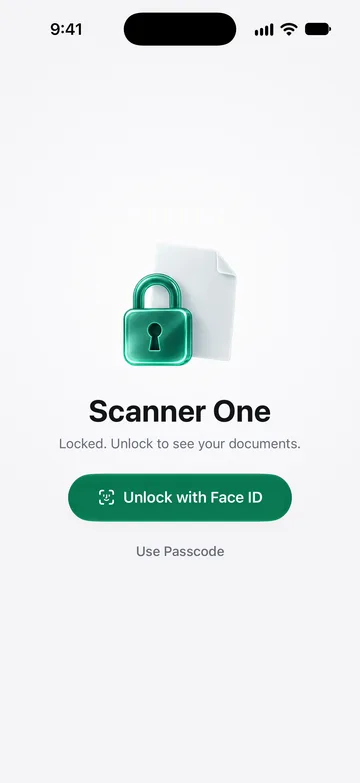
With App Lock on, the app switcher shows a cover instead of your pages, and Spotlight shows your documents’ names but not the text inside them.
Lock only some folders
-
Lock a folder
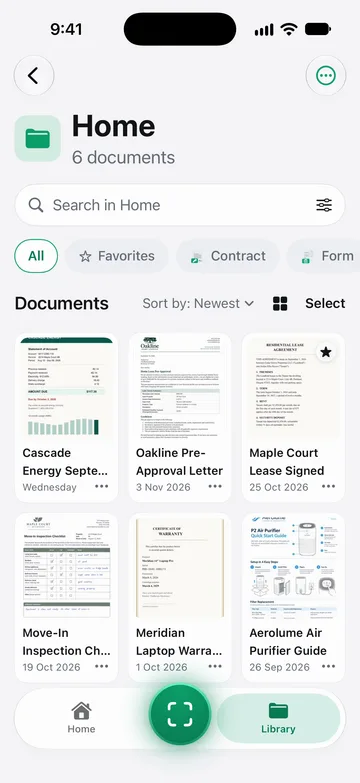
In the Library, open the folder, tap the More button (three dots) at the top right and choose Lock Folder. Holding the folder’s tile shows the same menu. For a new folder, tap New Folder, turn on Lock this folder, and tap Create.
-
Set the passcode
The first time, Scanner One asks you to Set a Passcode: 6 digits, or 4-Digit Code or Password under Passcode Options. Enter it again, then tap Use Face ID. One passcode opens all your locked folders.
-
Put documents in it
Touch and hold a document and choose Move to Folder…, then the locked folder. Moving a document in never asks for the passcode; moving it out, opening it or sharing it needs the folder open.
-
Open it later
Tap the folder’s tile and look at your iPhone: Face ID opens it, and the passcode works too. It stays open until you leave Scanner One, after 5 minutes with nothing from a locked folder on screen, or when you choose Lock Now in the folder’s menu.
What a locked folder hides
A locked folder’s documents show only on that folder’s own screen, once you’ve opened it. Even then, they stay out of Home, the Library’s other lists and counts, search across the Library, Spotlight, Siri and Shortcuts, and Auto-export. Their reminders say only that they’re about a document in a locked folder. If you leave the app with one of them on screen, a cover goes up before the app switcher’s picture is taken.
After 4 wrong tries, Scanner One makes you wait: 1 minute, then 5, 15 and 15, then an hour each time. If you change Face ID, for example by adding an alternate appearance, it asks for the passcode once before Face ID works again.
What these locks don’t do
Scanner One’s locks are locks on the app, not encryption: they decide what the app shows. The pages are protected the way iOS protects every app’s files. Anyone who knows your iPhone’s passcode can reset the folder passcode, in Settings under Locked Folders, so keep the iPhone’s passcode to yourself. And a lock on your phone doesn’t travel with a file you send: for that, password-protect a copy of the PDF.
App Lock and locked folders are free. Making more folders than the free plan allows needs Pro.
If something goes wrong
- Lock with Face ID is grayed out. App Lock needs a passcode on your iPhone. Set one in Settings, under Face ID & Passcode, then try again.
- You forgot the folder passcode. In Scanner One’s Settings, under Locked Folders, tap Reset Passcode. It asks for Face ID or your iPhone’s passcode, then a new folder passcode; the folders stay locked under it.
- A document is missing from search. It’s in a locked folder, and those only show on their folder’s own screen. Open the folder and search inside it.
- “Too many tries”. Wait out the time it shows before you type the passcode again. With Face ID on, opening the folder still tries Face ID first.

