To remove handwriting from a scanned page, open it in Scanner One’s Markup, pick Clean Up and tap Erase Handwriting. Scanner One finds the pen and pencil marks, lights them up, and erases the ones you leave chosen, filling each spot with the paper around it while the printed words, lines and boxes stay. It’s made for printed forms and worksheets filled in by hand.
First: is there a blank copy?
Many forms exist as a blank PDF on the website of whoever issued them. If yours does, download that: it will always be cleaner than an erased scan. And an erased form is for reusing, not for changing what a signed paper said.
The free ways
- Markup in Files or Photos can cover writing by drawing over it in white. That hides it, but it also covers the lines and boxes under it.
- The Photos app’s Clean Up tool removes what you brush over in a photo, on iPhones with Apple Intelligence (Apple: Clean Up requirements). It works on a photo of the page, not on a PDF, and it’s made for photos of scenes, so check the result closely on a page of print.
Erase handwriting with Scanner One
-
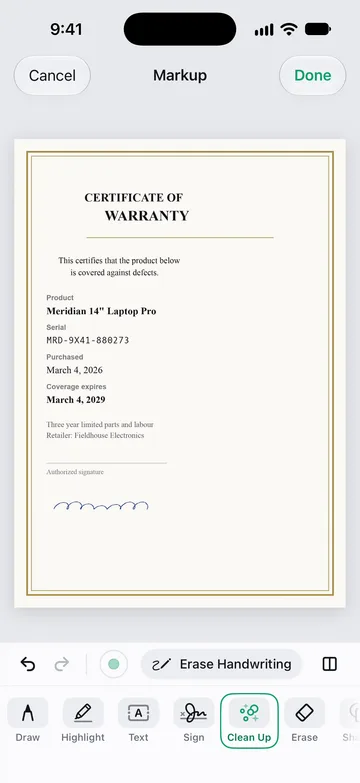
Open Markup and pick Clean Up
On the document, tap Markup, go to the page, and tap Clean Up in the tool row. On the free plan, its tile shows how many documents you have left this month.
-
Find the handwriting
Tap Erase Handwriting. Scanner One looks over the page (“Finding handwriting…”) and lights each find in green. The row above the tools says how many: “Found 6. Tap one to keep it.”
-
Keep what should stay
Tap a find to keep it, such as a signature or a date you want to leave. Its light goes out and a dashed edge stays, so you can tap it again if you change your mind.
-
Erase, then clean up what's left
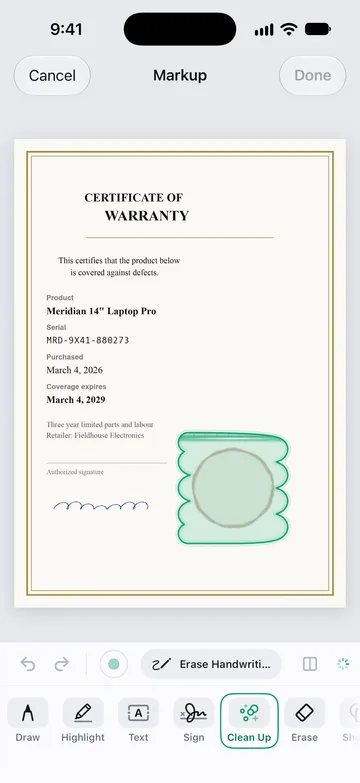
Tap Erase 5 (the number counts what’s chosen). The paper fills in over each find, as a single step the undo arrow can take back. For anything it missed, scribble over the mark or tap it, as here on a coffee ring. Tap Done to save.
What it keeps, and what it can get wrong
Scanner One finds handwriting by reading the page 2 ways: one reader reads handwriting well, the other mostly doesn’t. Words where the 2 disagree and that look handwritten (taller than the print, sitting on a form’s line, or in an ink of their own) are the finds. That’s why it keeps:
- Printed words, even where the writing touches them.
- Form lines and boxes. Writing on a line is lifted off without the line, and a tick inside a checkbox goes while the box stays.
- Bold logos, and anything turned more than 25°, like a watermark or a stamp set at an angle.
Check what’s lit before you erase: an upright rubber stamp such as PAID can be taken for handwriting, and so can printed text in a handwriting-style font. Ticks and scribbles are only looked for on pages that also have handwritten words.
It needs a scan, not a PDF with text
Clean Up and Erase Handwriting work on pages Scanner One keeps as pictures: camera scans, photos, and PDFs made only of images. A PDF with its own text layer, made on a computer or by a copier that reads the text, has White-out in that place in the tool row, which only covers marks in white. To erase writing on such a form, scan the paper with Scanner One’s camera.
On the free plan, Markup works on 3 documents a month and Clean Up, Erase Handwriting included, on 3 documents a month; working on the same document again doesn’t count twice. Pro removes both limits. Once you tap Done, the erase is written into the page and into the photo it was made from: the Undo in the message that follows is your last chance to take it back, and a later filter change won’t bring the writing back. To keep the filled-in version as well, tap the ⋯ button on the document and Duplicate it first.
If something goes wrong
- There’s no Clean Up in the tool row, only White-out. The document is a PDF with its own text. Scan the paper instead.
- “No handwriting found.” The writing may be very light, or the page too small: a low-resolution photo gives the readers little to go on. Scribble over the writing with Clean Up yourself.
- A gray ghost stays where the pen was. Scribble over it with Clean Up. A wider brush, from the round button at the left of the row above the tools, covers it in one stroke.
- “Clean up a large area?” A mark that covers more than 15% of the page asks first. Tap Clean Up to go ahead.

